
The first setting that you will see in the KimaAI settings page is AI Services.
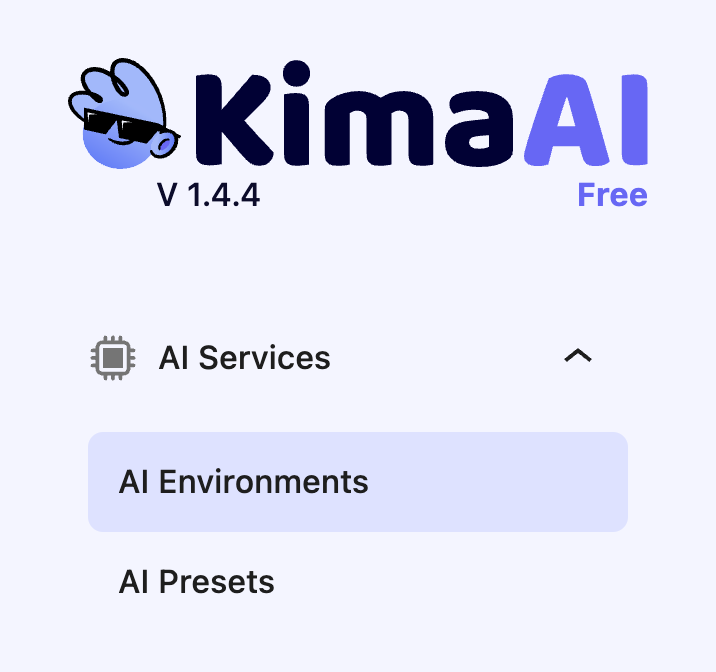
Currently, under the AI Service setting, there are 2 tabs:
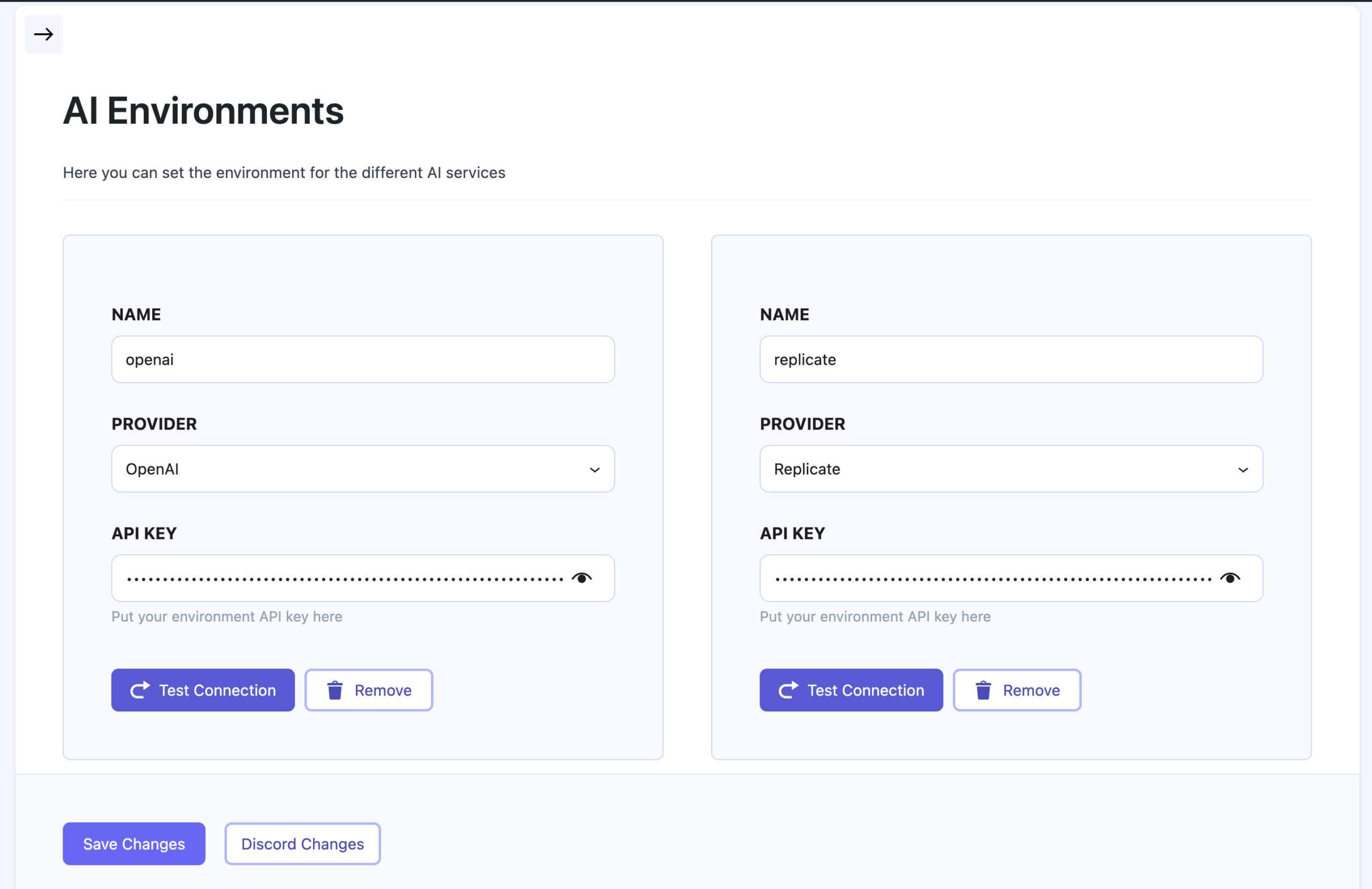
- AI Environments → In this page, you can set as many AI ENVs as you want. You have access to different AI providers like OpenAI, Replicate (we will add more providers soon!)
- AI Presets → Here you can set some presets for different AI Services, like Chatbot or image generation, and so on.
AI Environments
In the AI Environments page, you can put your AI providers’ API keys:
How to create your first AI Environments
Now, for creating your first AI Environments, the only important thing you need is the AI provider API key. Now I have my OpenAI API key, the only thing that I need to do is to click on the “Add Item” button.
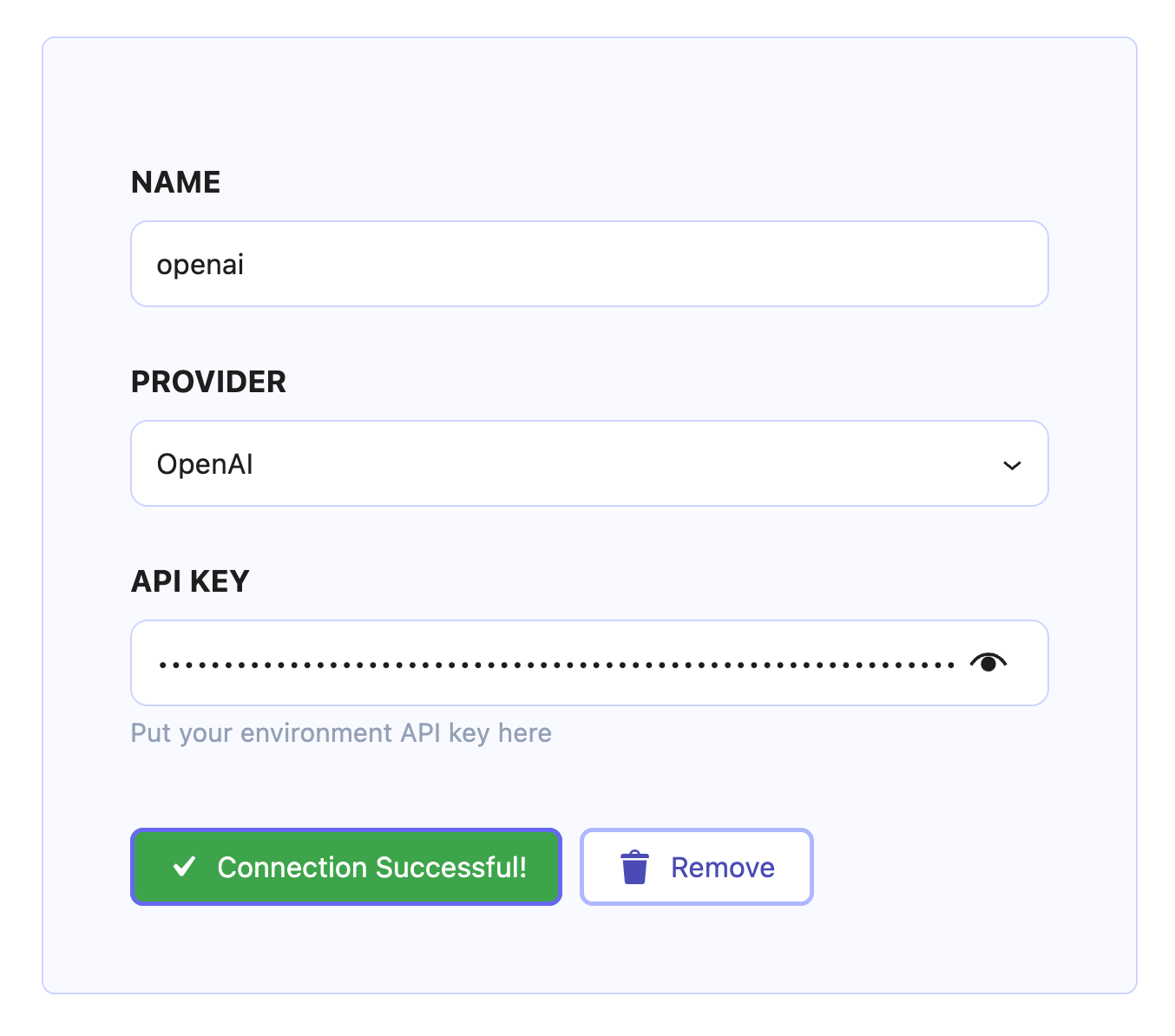
After that I will see this:
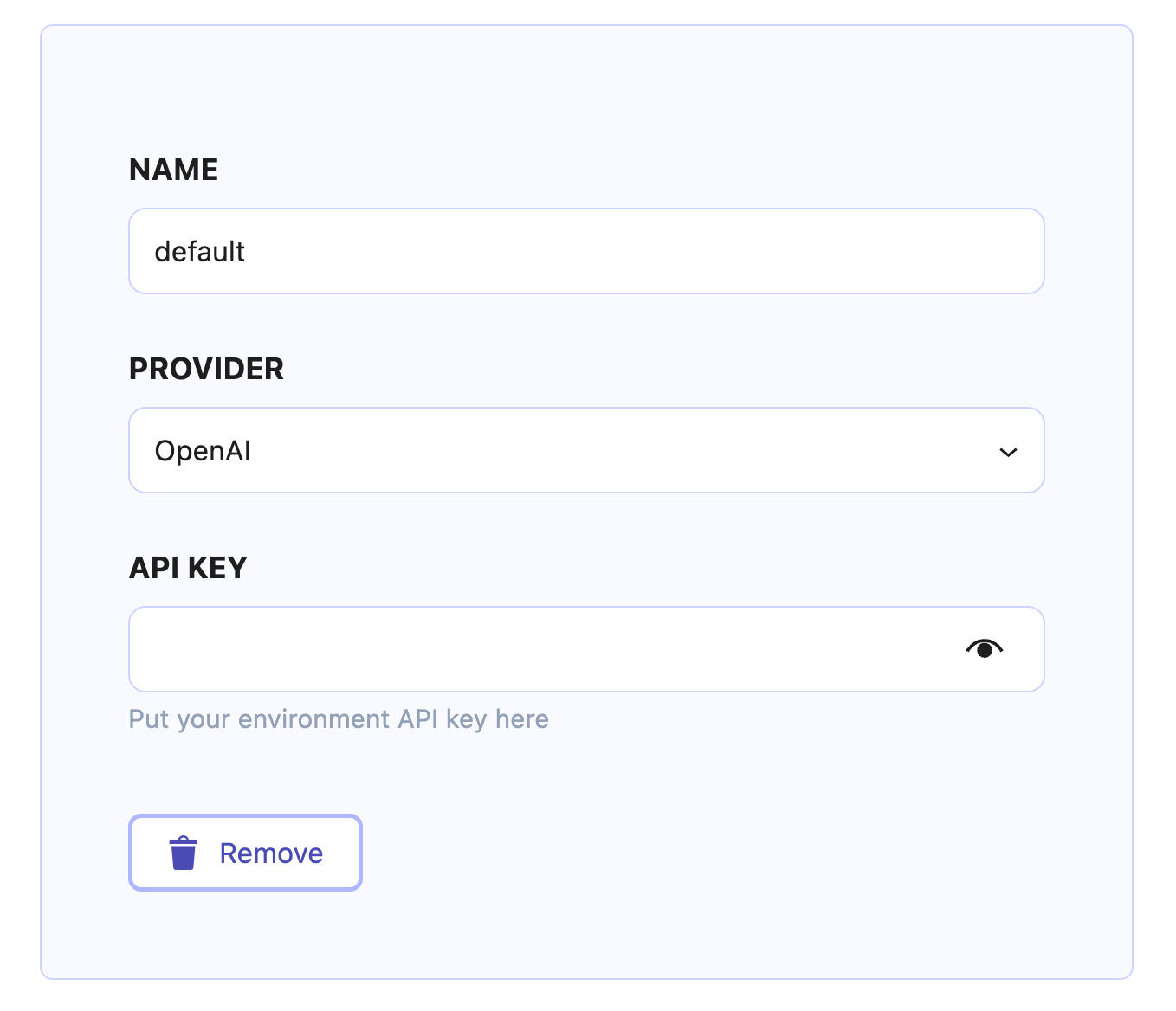
- Name: Choose a name for this ENV, please chose id like names (no space and no special characters, only use alphabets)
- Provider: Open the provider dropdown and choose the one for which you have the API key. We recommend starting with OpenAI.
- API key: In this field, you should add the API key that you obtained for OpenAI. Check out this documentation → Set up Your OpenAI Account and API Key
As described above, fill out each field with the necessary data. Then hit the “Test Connection” button, and if the API key is fine, you should see the “Connection Successful” message.
Save the settings!
After this, we need to hit the “Save Changes” button to save everything. Nice! You have now created your first AI Environment!
Now, let’s see what we can do in the AI Presets section in the following.
AI Presets
Under the AI Service tab, there is the AI Presets section, which in here you can set the presets for the different AI services:
Why do we need AI Presets?
The KimaAI plugin contains a variety of AI features, which you can use in different parts of the website. Each feature might uses different AI Provider and AI model, for example, for the AI chatbot, or the image generation, and so on. To make things simple, we set the provider and model for each feature here.
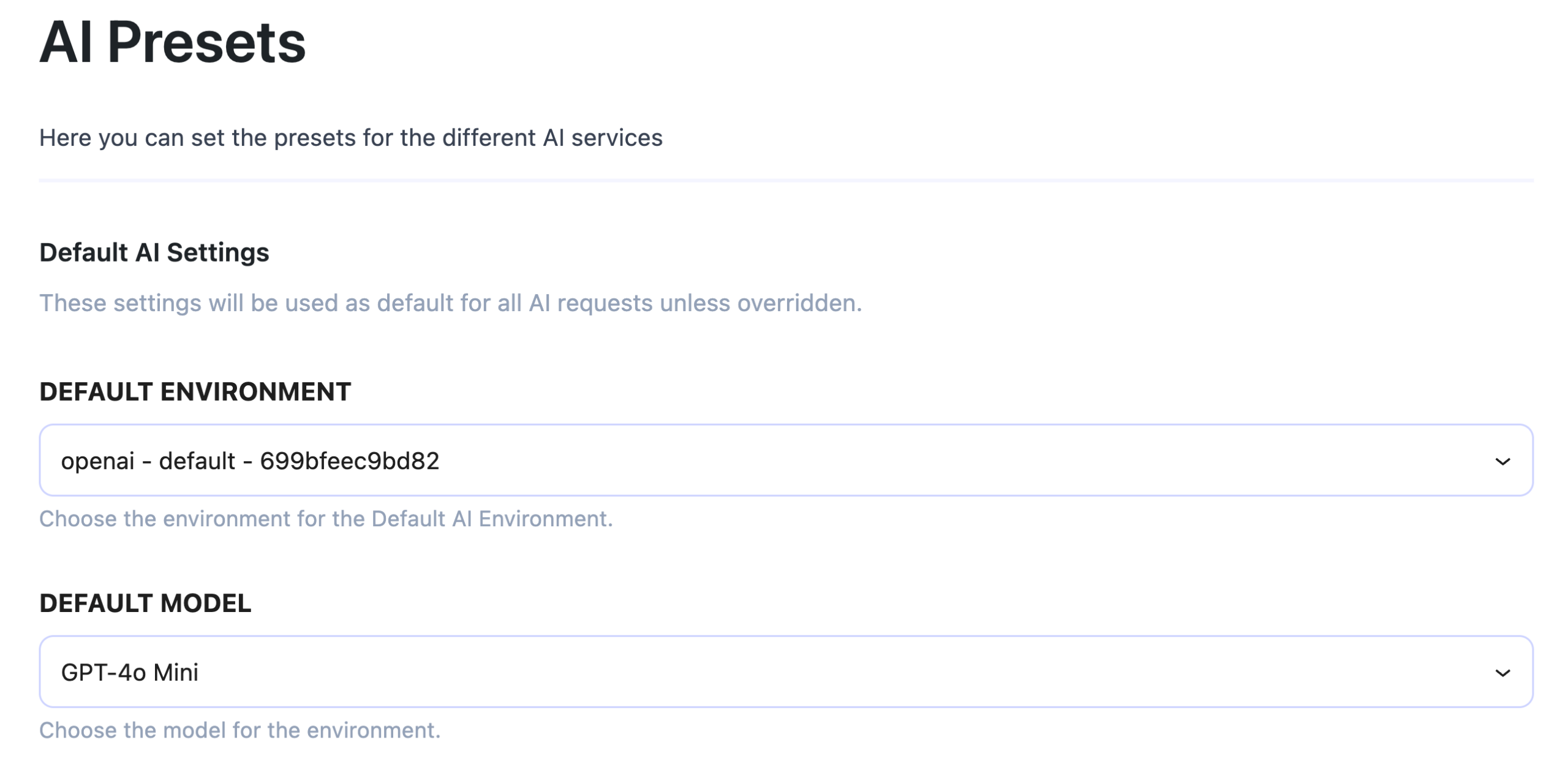
Default Preset
These settings will be used as the default for all AI requests unless overridden. This means, in all AI requests across all the AI Services and Features, we will first use the default presets, unless we override them in other settings.
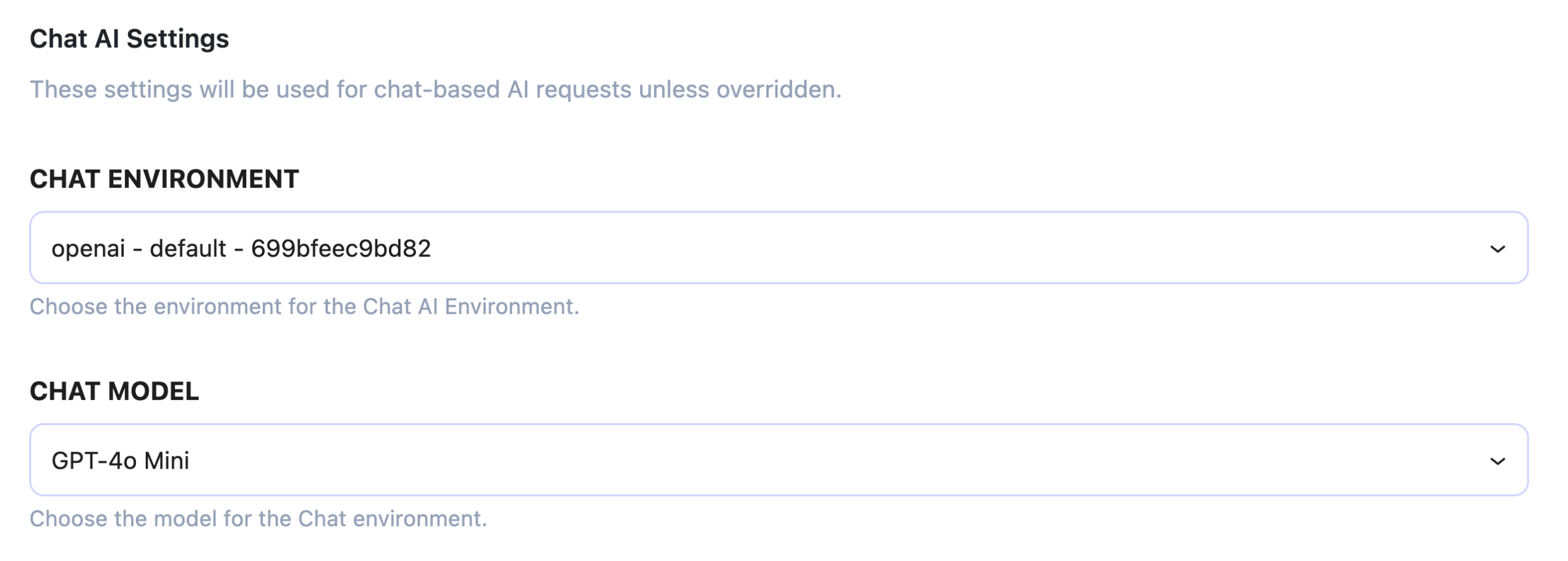
AI Chat Preset
These settings will be used for chat-based AI requests unless overridden. This means that all the chat requests will first use this AI provider and model, unless we choose a different setting for that specific feature/widget.
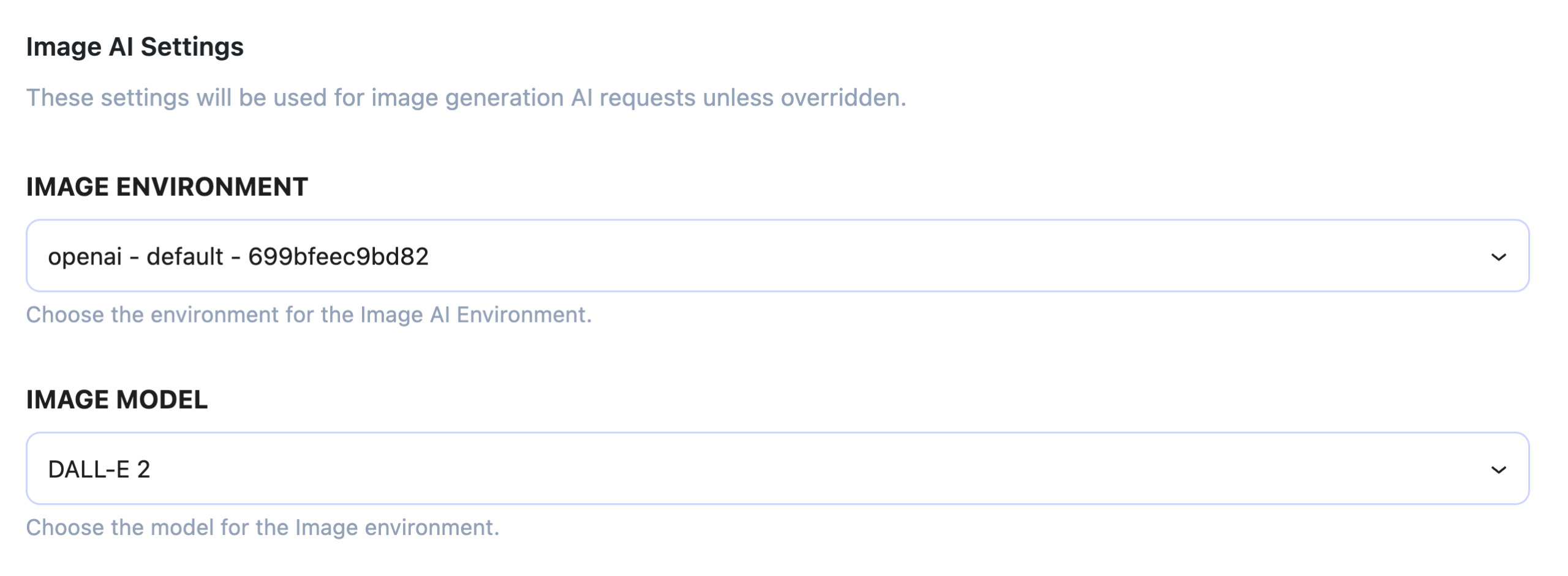
AI Image Preset
These settings will be used for image generation AI requests unless overridden. This means that all the AI image generation requests first will use this AI provider and model, unless we select a different configuration for that specific feature/widget.
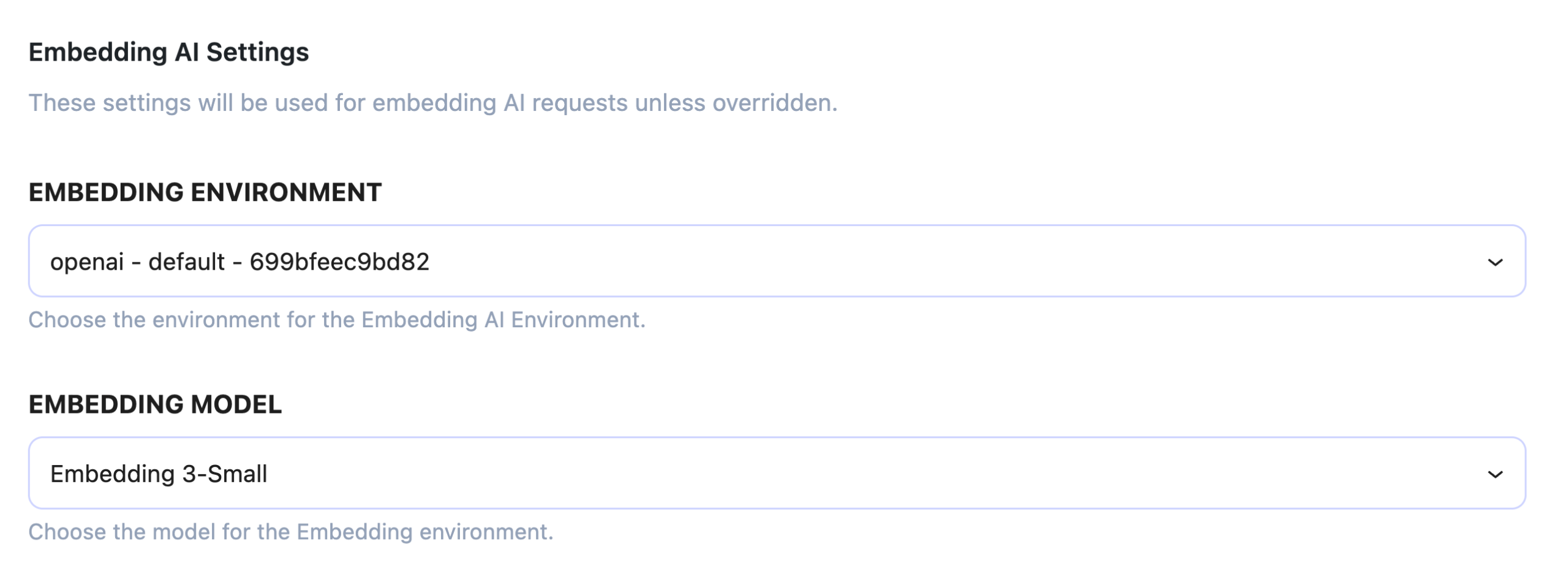
AI Embedding Preset
These settings will be used for AI embedding requests unless overridden. This means that all the AI embedding requests first will use this AI provider and model, unless we override/select a different configuration for that specific feature/widget.
Notice: If at the moment this is overwhelming for you, you can leave all of these settings as is for now, and do not change anything. We will try to cover each feature/widget that uses these presets separately in its own dedicated document page, so you can check them later.


