
KimaAI’s Content Awareness feature helps your AI Assistant or AI Chatbot understand the content of the page the visitor is currently viewing. When enabled, the chatbot can respond with better context because it is aware of the current post or page and can use that page’s content as part of the conversation. KimaAI describes this as one of its built-in features that lets the assistant stay grounded in your website’s own material.
What is Content Awareness?
Content Awareness is a feature that gives the chatbot awareness of the current page or post the user is on. This means that when a visitor is reading a specific page or post, the chatbot can “know about that page,” and the user can ask questions about the content of the current page directly.
In practical terms, this helps your chatbot:
- answer questions about the current page more accurately,
- stay relevant to what the visitor is reading,
- guide users to the most relevant information on your site,
- reduce generic answers by giving the model page-specific context.
This is especially useful for:
- product pages,
- documentation pages,
- blog posts,
- landing pages,
- help center or knowledge base articles.
For example, if a visitor is reading a pricing page, they can ask, “What plan is best for a small team?” If they are on a docs article, they can ask, “Can you summarize this page?” With Content Awareness enabled, the chatbot has better context for those questions because it can use the current page information.
How Content Awareness works
At a high level, Content Awareness works by passing the current page context into the chatbot flow. When the setting is enabled, the chatbot becomes aware of the page, post, or any selected post type that the visitor is on.
Content Awareness will be activated with placeholders inside your chatbot instructions, including:
{post_url}{post_title}{post_content}
These placeholders let your chatbot instructions dynamically include information from the current page. In other words, instead of writing one fixed instruction for every situation, you can write instructions that adapt automatically depending on the page the visitor is viewing.
Example of how it works
If a user is visiting a page called “AI Chatbot Features”, Content Awareness can help the chatbot understand details such as:
- the page title,
- the page URL,
- the page content.
Then, when the visitor asks a question like:
What does this page explain?
the chatbot can answer in the context of that page instead of giving a broad or unrelated answer.
Why use Content Awareness?
KimaAI positions Content Awareness as one of the core reasons the chatbot can feel useful on a real website, because it lets the assistant use your site’s original material and guide visitors to relevant pages.
Main benefits
1. Better answers on the current page
The chatbot can answer based on the page the user is reading, which makes answers more relevant and less generic.
2. Better user experience
Visitors do not need to explain the page they are on. The chatbot already has that context available when Content Awareness is enabled.
3. Stronger support and engagement
The assistant can engage users using your original material and guide them to relevant pages for more information.
4. Easy to enable
The setup is straightforward, and the feature is enabled from the Chatbot settings area.
Content Awareness vs Vector DB Knowledge Base
Content Awareness and Vector DB Knowledge Base are related, but they are not the same feature.
Content Awareness
Content Awareness focuses on the current page or post the user is viewing. It gives the chatbot context about that specific page.
Vector DB / Knowledge Base
The Vector DB or Knowledge Base feature is broader. This feature lets you configure an embedding environment and sync posts, pages, or other content into a vector database so the chatbot can retrieve relevant information from synced site content.
A simple way to think about it is:
- Content Awareness = “Know the page I am on right now.”
- Knowledge Base / Vector DB = “Search across synced website content to find related information.”
You can use Content Awareness alone or combine it with the Knowledge Base feature for more accurate results on larger websites.
Before you enable Content Awareness
Before turning on Content Awareness, make sure:
- KimaAI is installed and activated.
- Your AI service and model are configured.
- Your chatbot is already created and working normally.
How to enable Content Awareness
You can enable Content Awareness from the chatbot settings screen.
Navigation path
Go to: WordPress Dashboard → KimaAI Settings Page → Chatbot Settings
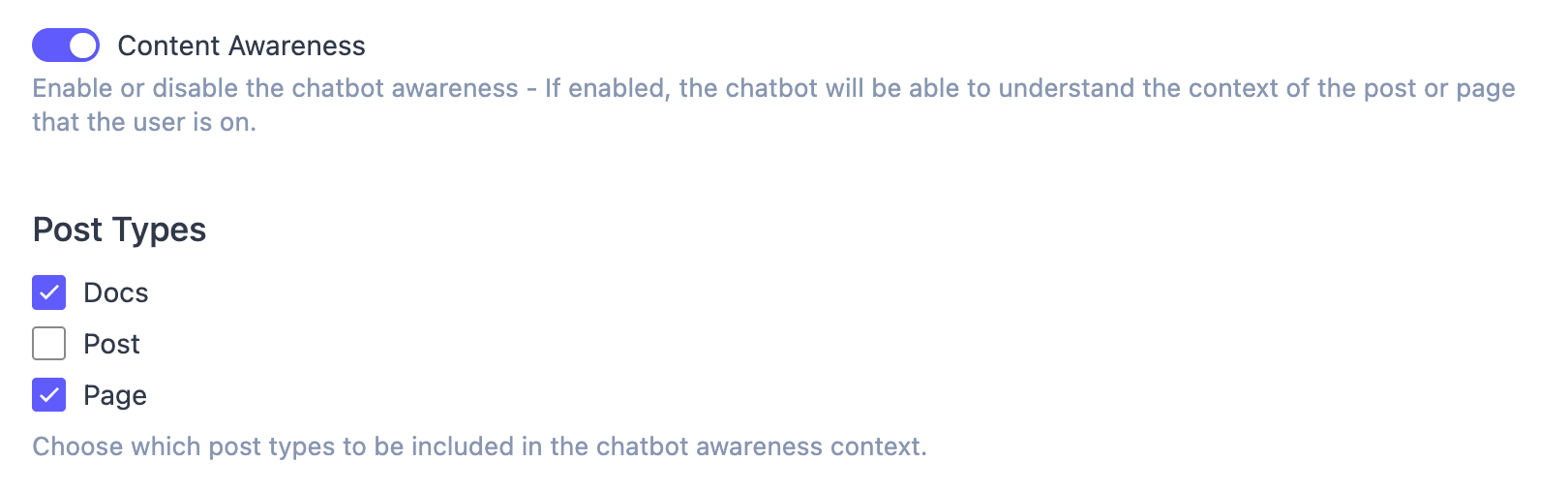
Steps
- Step 1: Open Chatbot Settings
- Navigate to the KimaAI Chatbot settings page in your WordPress dashboard.
- Step 2: Find the Chatbot Instructions section
- Content Awareness appears inside the chatbot instructions/settings area.
- Step 3: Enable the Content Awareness toggle
- Turn on the Content Awareness option. Once enabled, the chatbot can understand the context of the current page or post the user is viewing.
- Step 4: Save the settings
- After enabling the toggle, save your chatbot settings.
How to use Content Awareness in Chatbot Instructions
One of the best ways to improve this feature is to write instructions that clearly tell the chatbot how to use page context.
KimaAI supports content-aware placeholders such as:
{post_url}{post_title}{post_content}
You can use these placeholders inside your chatbot instructions so the assistant behaves differently depending on the current page.
Example instruction
You are the AI assistant for our website. Use the current page information below to help the visitor.

Current page title: {post_title}
Current page URL: {post_url}
Current page content: {post_content}

Answer in a helpful, clear, and professional tone. Prefer information from the current page first. If the page does not clearly contain the answer, say so clearly and guide the visitor to the most relevant page or suggest contacting us.
Why this works well
This approach helps the chatbot:
- prioritize the current page,
- avoid making up information,
- answer in a more page-aware way,
- stay aligned with your site content.
That matches KimaAI’s broader goal of keeping responses grounded in your website’s material.
How to select the post types
When Content Awareness is enabled, you can choose which post types should provide context to the chatbot.
In the current settings UI shown in the example screenshot, the available post types are:
- Docs
- Post
- Page
These are the content types that can be included in the chatbot awareness context on your site, based on your current setup.
What post types mean
In WordPress, a post type is a content type such as:
- Page for static pages,
- Post for blog posts,
- Docs for documentation content,
- and sometimes custom post types created by themes or plugins.
How to choose the right post types
Enable Page if:
You want the chatbot to understand regular website pages such as:
- Home
- About
- Pricing
- Contact
- Services
Enable Post if:
You want the chatbot to understand blog articles and news posts.
Enable Docs if:
You want the chatbot to understand documentation or help-center style content. This is especially useful for product docs, setup guides, FAQs, and tutorials.
Remember that custom post types are something that differ from website to website, and you might have other custom post types like “product“, etc.
Recommended setup
For most business websites, a good starting point is:
- Page enabled
- Docs enabled – If you have docs
- Post optional, depending on whether blog content should be part of chatbot context
If your blog includes marketing posts that are less useful for support questions, you may prefer to keep Post disabled at first and only enable Page and Docs.
Example use cases
Example 1: Documentation website
A visitor is reading a docs page about API setup and asks:
Where do I add my API key?
If Docs is selected as a content-aware post type, the chatbot can answer using the current documentation page context.
Example 2: Service business website
A visitor is on a service page and asks:
What is included in this service?
If Page is selected, the chatbot can answer based on that service page.
Example 3: Blog content
A visitor is reading a tutorial post and asks:
Can you summarize the main steps?
If Post is selected, the chatbot can use the current article as context.
Best practices
Only enable useful post types
Do not enable every post type unless it adds value. Choose the content types your visitors are most likely to ask about.
Combine with a Knowledge Base for larger sites
For websites with lots of content, Content Awareness works best together with KimaAI’s Knowledge / Embeddings / Vector DB feature, which supports syncing content into a vector database for broader retrieval.
Troubleshooting
The chatbot is not answering about the current page
Check the following:
- Content Awareness is enabled.
- The correct post types are selected.
- Your chatbot instructions are written clearly and contain the awareness place holders
{post_title}{post_url}{post_content} - The visitor is on a supported content type.
- Your AI service and model are configured properly.
The chatbot gives generic answers
Improve your chatbot instructions by explicitly telling it to use:
{post_title}{post_url}{post_content}
and to prefer current-page information first.
Summary
Content Awareness is a built-in KimaAI feature that makes the chatbot aware of the page or post the visitor is currently viewing. When enabled, it helps the chatbot answer more accurately, stay relevant to the page context, and improve the visitor experience.
To use it effectively:
- Open KimaAI → Settings → Chatbot Settings
- Enable Content Awareness
- Select the post types you want included
- Use placeholders like
{post_title},{post_url}, and{post_content}in your chatbot instructions - Save your settings and test on real pages


