
If you want to export your current KimaAI configuration, import it into another website, or save it as a backup, we’ve got you covered via the Export & Import Settings feature.
Export KimaAI Settings
First, let’s check how you can create/export a copy of all the KimaAI settings, including the add-ons. To do so, we need to go to the export page.
Go to the WordPress dashboard → KimaAI settings page → Tools → Export Settings
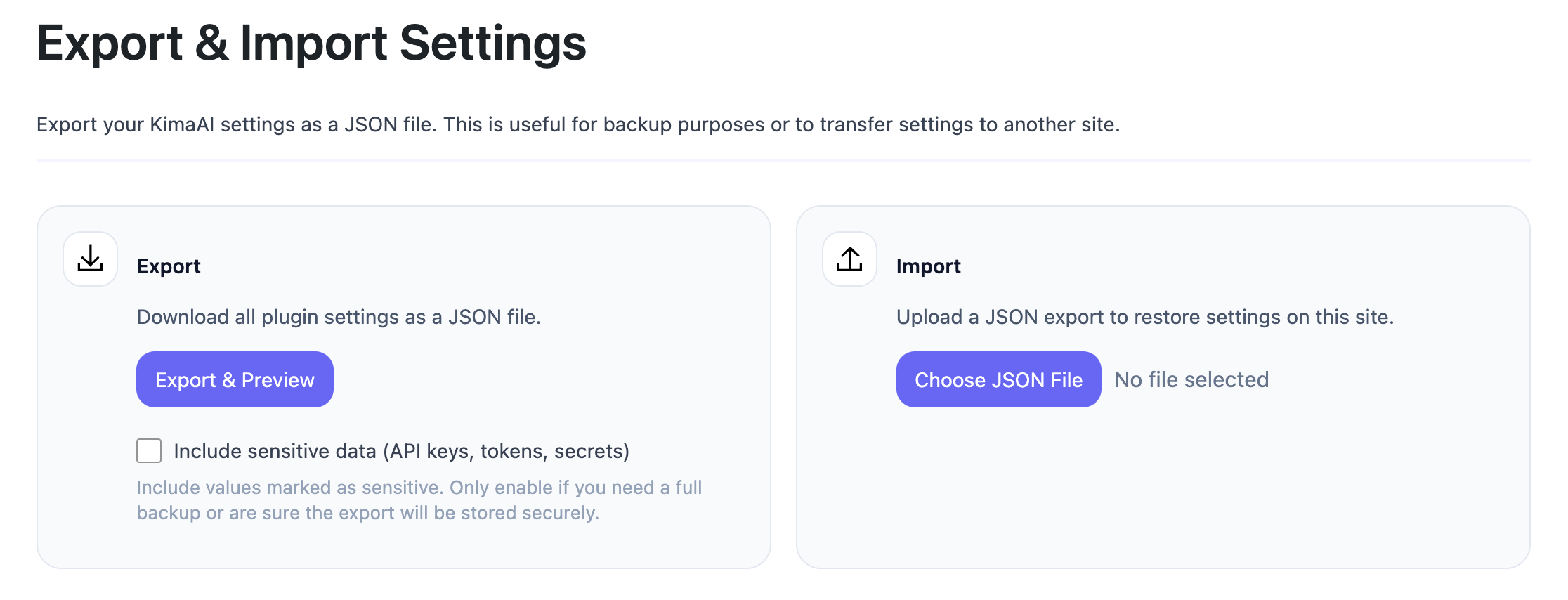
As you can see in the above screenshot, we have two sections, one for exporting and one for importing the settings.
Include sensitive data (API keys, tokens, secrets)
Under the Export & Preview button, there is a checkbox that lets you include sensitive data in the exported backup. Allow me to give you some more context about this option.
In the KimaAI plugin configuration, to connect to different AI providers (e.g., OpenAI) and services (e.g., vector databases), we use API keys. Now, these API keys must be kept secret. When we export the configuration, the KimaAI backup mechanism excludes this sensitive data by default.
If you need a full backup, check this checkbox before clicking on the Export & Preview button.
Important Notice: If you check the “Include sensitive data” checkbox, the exported settings JSON will include sensitive data. Please be careful with this file and store it securely.
Export & Preview
Now, hit the Export & Preview button to see the following pop-up:
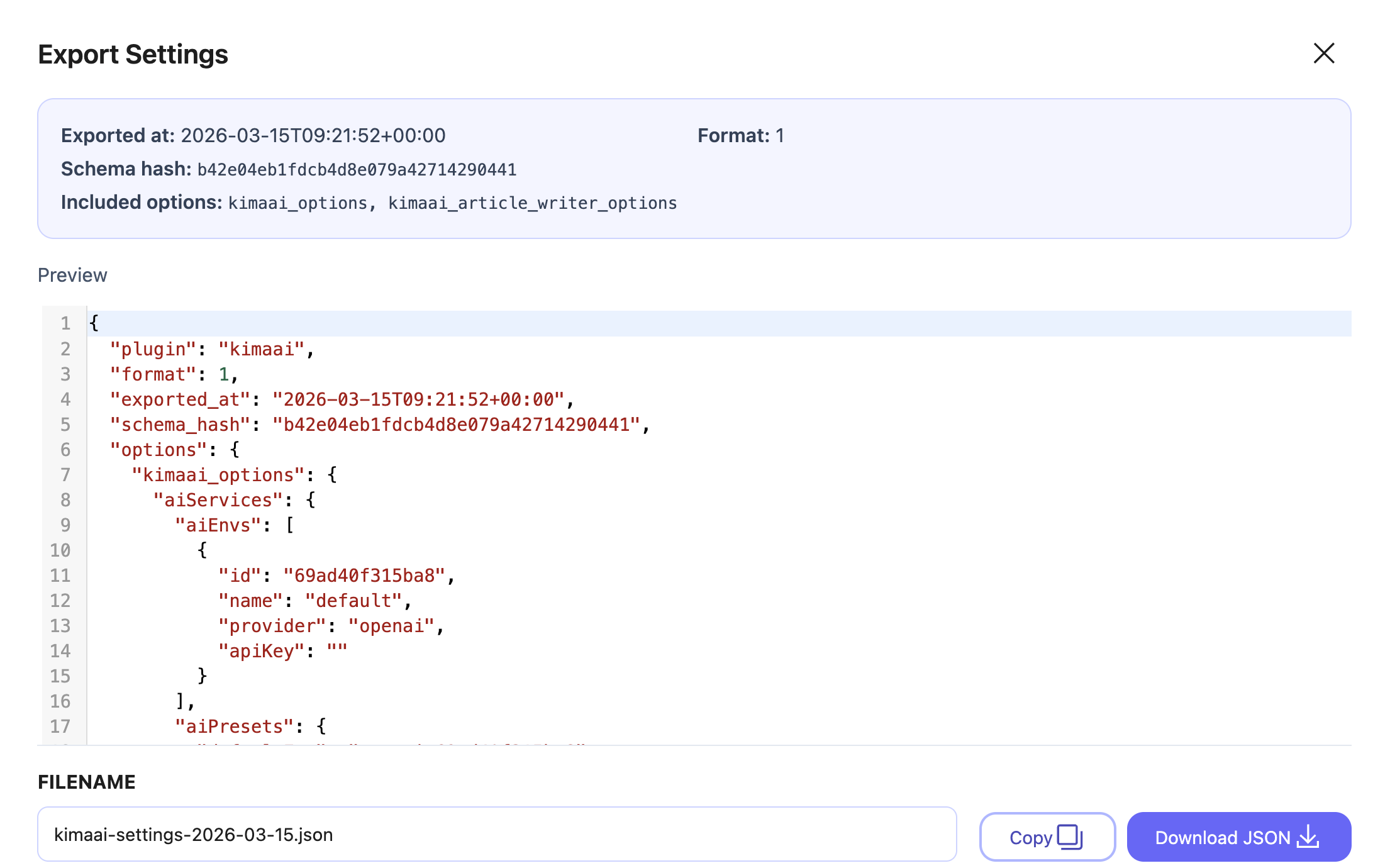
As you can see in the screenshot above, the export pop-up includes several pieces of information and action buttons.
- Export information: In this section, you will see the date, the schema hash, and the option keys.
- Preview: In this section, you can view a preview of the settings that will be exported as JSON.
- Filename: In this field, you can rename the file that will be exported. It’s better to choose a file name you can identify more easily later.
- Copy button: Click this button to copy the entire JSON to your clipboard.
- Download JSON: Click this button to download a copy of the settings in JSON.
Download the KimaAI Settings as JSON
To download a backup of the KimaAI configuration and settings, just hit the Download JSON button, and you should see a JSON file being downloaded to your computer.
Import KimaAI Settings from a backup file
Now, let’s see how you can import these settings into a different environment.
Important Notice: Importing a backup file will override your current settings. If you don’t want this, you should not import the settings.
Go to the WordPress dashboard → KimaAI settings page → Tools → Export Settings
Then, in the import box, click on the “Choose JSON File” button.
Then, choose the file that you exported before; the file format must be JSON.
After doing so, you should see a preview pop-up, which will show the JSON backup that you are about to import.
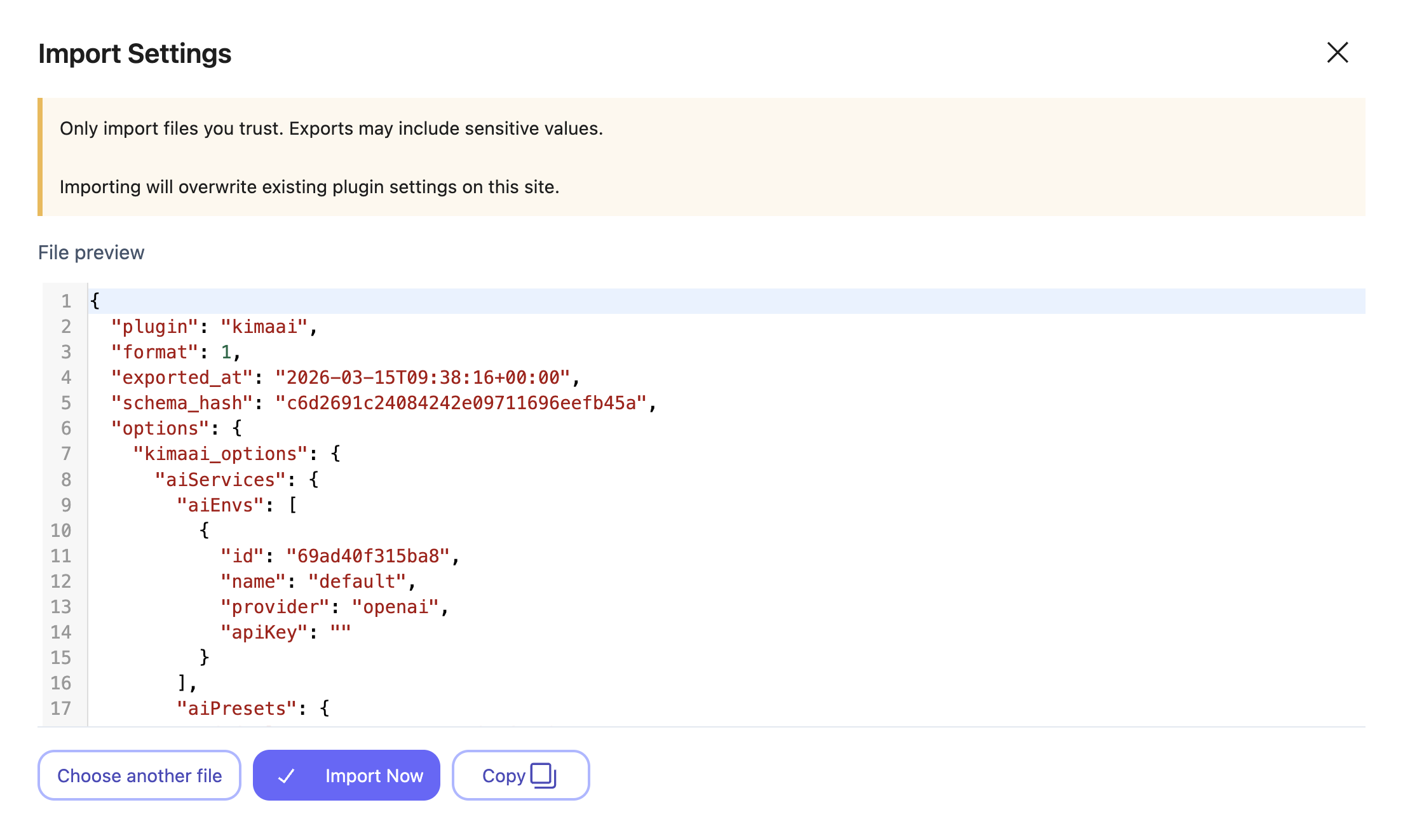
As you can see in the above screenshot, the import pop-up contains the following:
- Notifications: Only import files you trust. Exports may include sensitive values. Importing will overwrite existing plugin settings on this site.
- Preview: You can see a preview of the JSON file that you are about to import.
- Choose another file: Click this button to choose a different file.
- Import Now: Click this button to import the backup file.
- Copy: Click this button to copy the entire JSON to your clipboard.
After you import the file, you can go and check the settings and see if everything has been configured based on the backup file or not.


