
Another cool and built-in feature that you get out of the box with the KimaAI plugin is Function (Tool) Calling.
Notice: This is an advanced feature. If you’re not comfortable writing PHP and testing safely (staging site, backups, error logs), you should avoid enabling custom tools—or ask a developer—because a bad tool definition can break requests or expose sensitive site actions.
What is the function or tool calling in the AI world?
In the AI world, function calling (also called tool calling or tool use) lets a language model go beyond “just text” by producing a structured tool request—for example: call get_weather with { "location": "Berlin" }—so your application can run real code or query external systems (APIs, databases, WordPress data) and return the result to the model for a more accurate final response. The key idea is: the model chooses the tool and arguments, but your software executes the tool (in this case, the KimaAI plugin + WordPress) and sends back the output.
How KimaAI uses tool calling
When tool calling is enabled, KimaAI can:
- expose a list of tools the chatbot is allowed to use,
- decide (based on the user’s message) whether to call one of them,
- execute the tool in WordPress,
- feed the tool result back into the conversation.
KimaAI also provides developer hooks so you can register your own tools and control/observe tool execution (e.g., allow/deny calls, log executions).
How to define custom tools for the chatbot?
There are two ways to define or create a custom function/tool for the AI chatbot inside KimaAI. In both cases, you should understand coding and have a clear idea of what your tool is allowed to do (and not do).
1) Define tools in the WordPress admin (UI)
Path: WordPress Dashboard → KimaAI → Settings → Chatbot → Function Calling
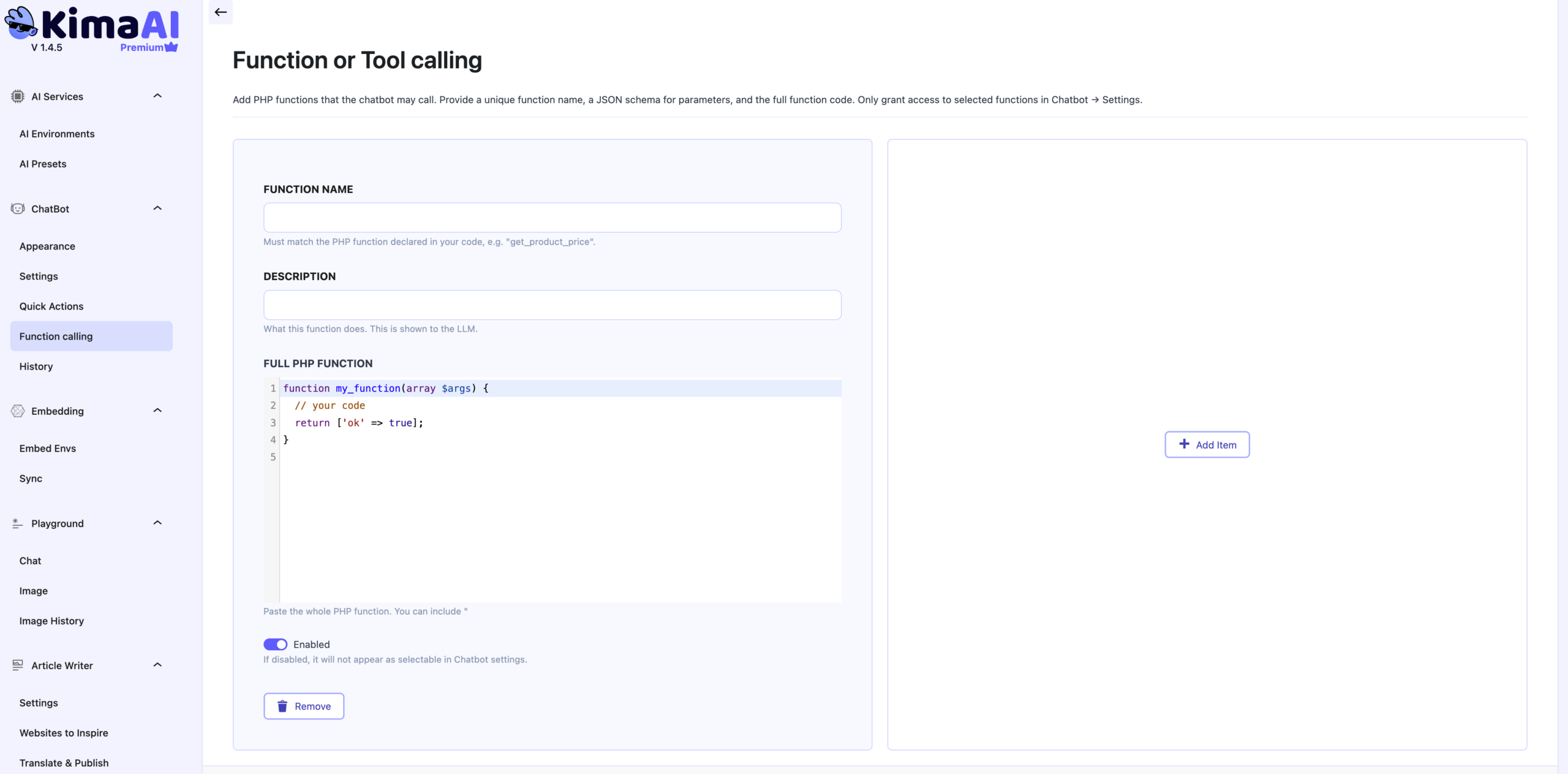
This approach is the fastest way to experiment: you add a tool definition directly in the settings page, typically including:
- Tool name (unique identifier)
- Description (what the tool does, in plain language)
- Implementation snippet (the PHP logic that runs when the tool is called)
Best practices (strongly recommended):
- Keep tools narrow and predictable (one job per tool).
- Validate and sanitize every input.
- Return clean, structured data (arrays/objects), not HTML when possible.
- Never expose secrets (API keys, user passwords, private tokens) in tool output.
(Tip: Treat every tool call like a public API endpoint—because that’s effectively what it becomes.)
Let’s define a custom function from the UI
- Navigate: To define your custom function from the UI, go to the WordPress Dashboard → KimaAI → Settings → Chatbot → Function Calling.
- Function name: Type your function name. Now, this is very important: the name that you type inside the “Function name” field must exactly match the name of your function. For example, if you want to define a function called
get_post_title, the name also must beget_post_title. - Description: In this field, you can describe what the function does, This is optional but recommended to be added.
- Full PHP Function: In this field, you must add your PHP function, as the following:
- Start with the
functionand do not add a<phptag. Example:function test(){} - Add the argument type hint, for example,
function get_post_title(int $post_id) {} - The function must return something, for example,
function get_weather(string $city_name) {return [...]}
- Start with the
Here is an example for getting the post title by the passed post id:
As you can see in the following screenshot, we defined a custom function.
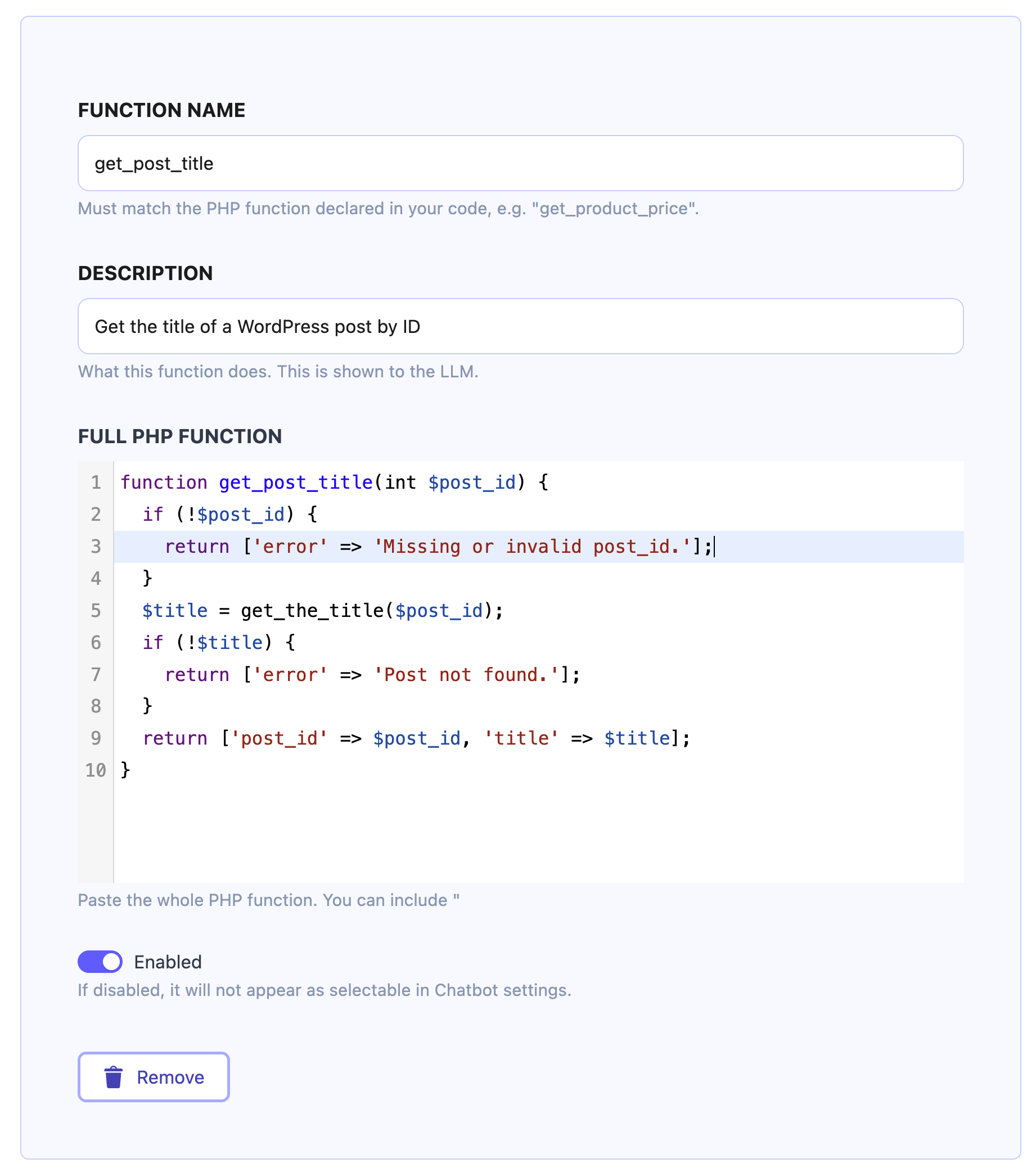
Here is the PHP code for you, so you can copy and past it:
function get_post_title(int $post_id) {
  if (!$post_id) {
    return ['error' => 'Missing or invalid post_id.'];
  }
  $title = get_the_title($post_id);
  if (!$title) {
    return ['error' => 'Post not found.'];
  }
  return ['post_id' => $post_id, 'title' => $title];
}
Now, after saving this, we also must allow the chatbot to call this function when necessary. To do so, go to Chatbot Settings. Now, if you did everything right, you should see the function name and description that we just defined, between the options, inside the Function Tools section.
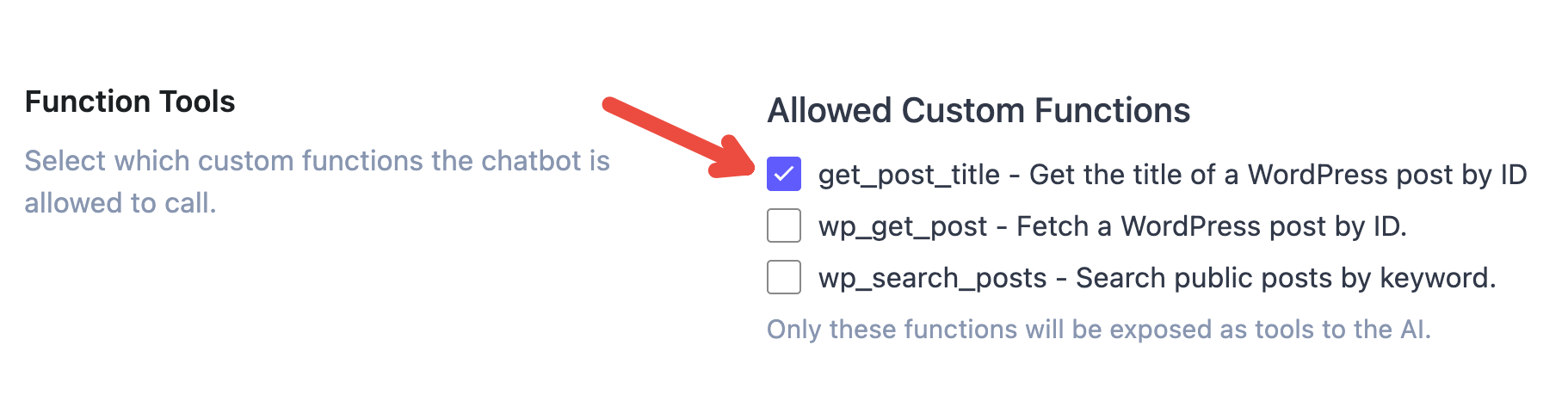
Select the tool and save the settings.
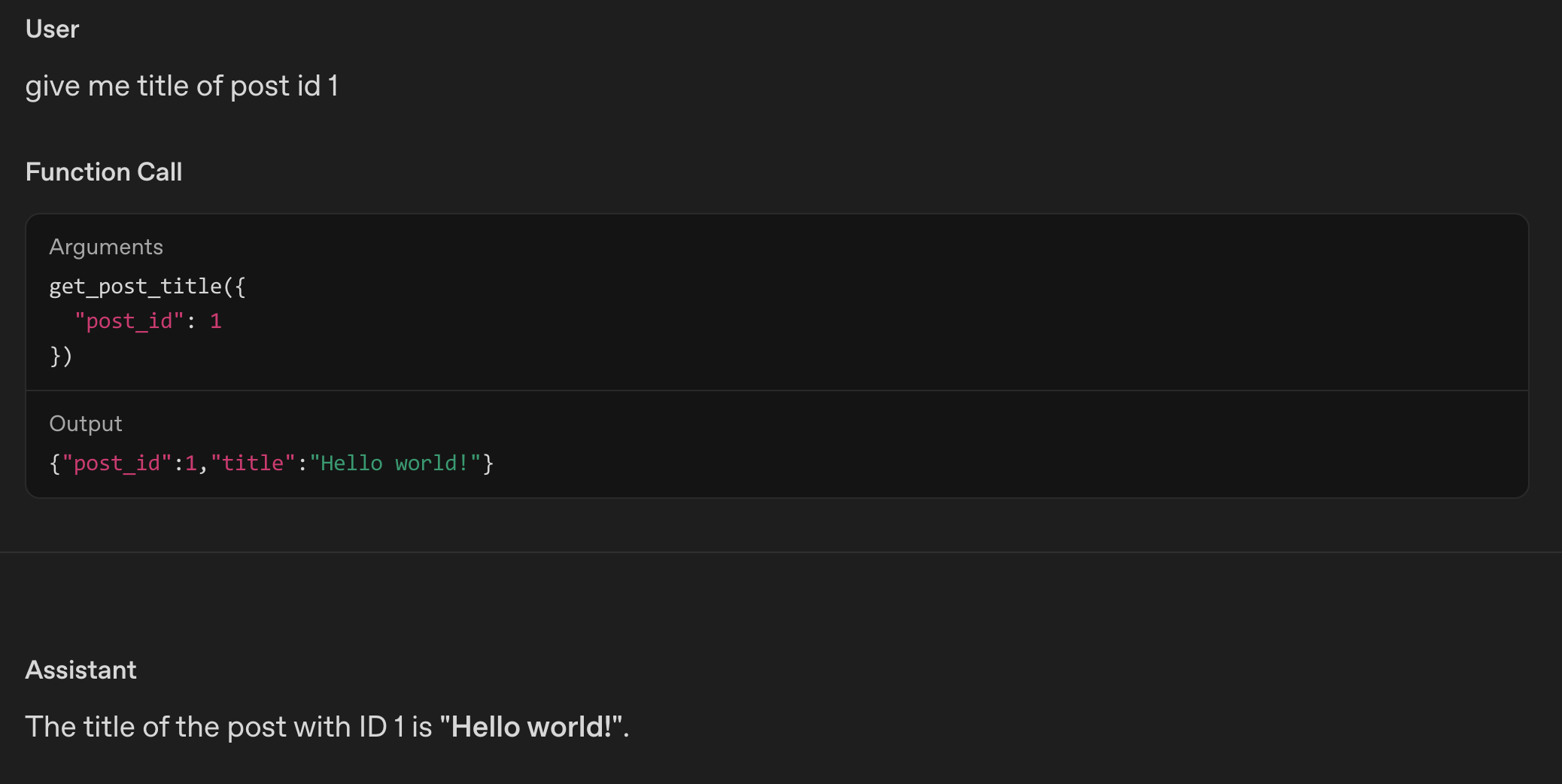
Now let’s check out the AI Chatbot / AI Assistant widget, and see if the chatbot can actually give us the post title of the given post id.
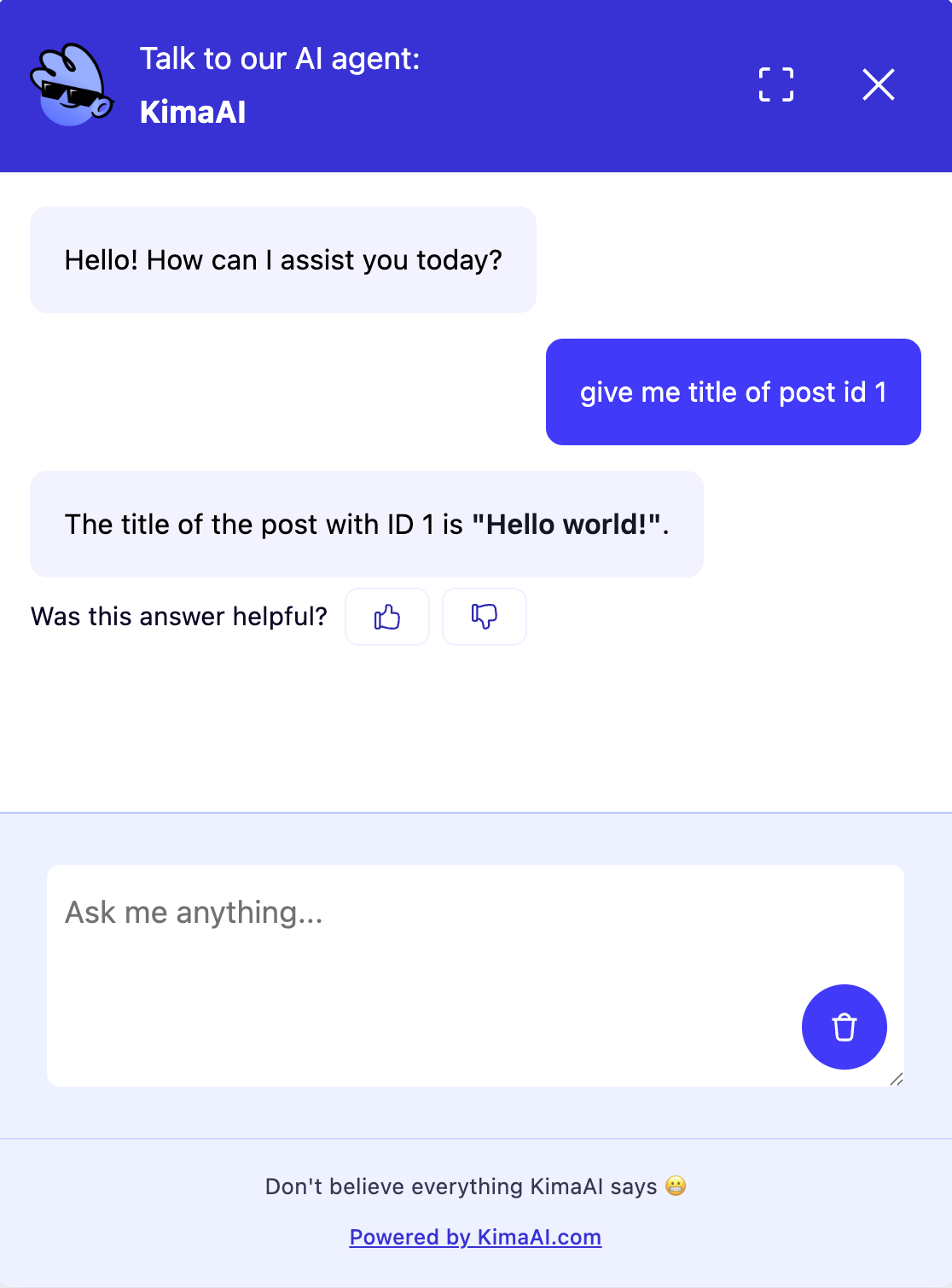
Now, if you check the KimaAI post with id 1, the title is correct! → Hello world!
Let’s also confirm this in the OpenAI API Log System
2) Define tools using WordPress hooks (developer method)
This option requires more familiarity with WordPress and PHP. Instead of pasting code in the UI, you register and manage tools in code (usually a small custom plugin or your theme’s functions.php—custom plugin is safer).
KimaAI exposes hooks that let you:
- register tools via a filter,
- allow/deny a tool call via a filter,
- observe executions via an action.
Here’s a high-level example showing the typical pattern:
add_filter('kimaai_tools_registry', function ($tools) {
  $tools['get_post_title'] = [
    'label' => 'get_post_title',
    'description' => 'Get the title of a WordPress post by ID.',
    'parameters' => [
      'type' => 'object',
      'properties' => [
        'post_id' => ['type' => 'integer', 'description' => 'The WordPress post ID.'],
      ],
      'required' => ['post_id'],
    ],
    'callback' => function (int $post_id) {
      if (!$post_id) {
        return ['error' => 'Missing or invalid post_id.'];
      }
      $title = get_the_title($post_id);
      if (!$title) {
        return ['error' => 'Post not found.'];
      }
      return ['post_id' => $post_id, 'title' => $title];
    }
  ];
  return $tools;
});
Notes:
- The hook names above come from KimaAI’s plugin.
- WordPress hooks (filters/actions) are the standard way to extend plugin behavior without editing plugin core files.
- The exact structure your KimaAI installation expects for each tool object may vary by version; keep your tools aligned with the plugin’s current implementation (and test after updates).
Recommendations before you go live
- Build and test on a staging site first.
- Add strict permission checks for any tool that reads/modifies private data.
- Keep tool output small and structured.
- Log tool usage (carefully) so you can audit what the chatbot is doing.


