
SFTP, which stands for Secure File Transfer Protocol (or SSH file transfer protocol), is a secure way to transfer files over a network. Unlike standard FTP, SFTP encrypts your data, keeping your information safe during transfer (take note of the distinction between FTP and SFTP for security purposes). To make sure your data stays protected and encrypted, it’s best to use SFTP connections. Here’s a step-by-step guide on connecting to your WordPress site using SFTP.

How to Use SFTP to Connect to WordPress Site
First, you’ll need an SFTP client. There are several free and paid options available; here are a few popular choices:
- FileZilla (Free – macOS or Windows)
- WinSCP (Free – Windows)
- FlashFXP (Premium – Windows)
- Cyberduck (Free – macOS or Windows)
- Transmit (Premium – macOS)
Next, set up your SFTP client using the following connection details:
- Connection type: SFTP (not standard FTP)
- Address/URL/Hostname: Enter your web server’s IPv4 Address
- Username
- Password
- Port
Your hosting provider will provide these credentials—often found in your hosting dashboard or sent via email. Typically, you’ll see these details listed under your list of WordPress sites, then select your site name, and look for the “Info” section for connection specifics.
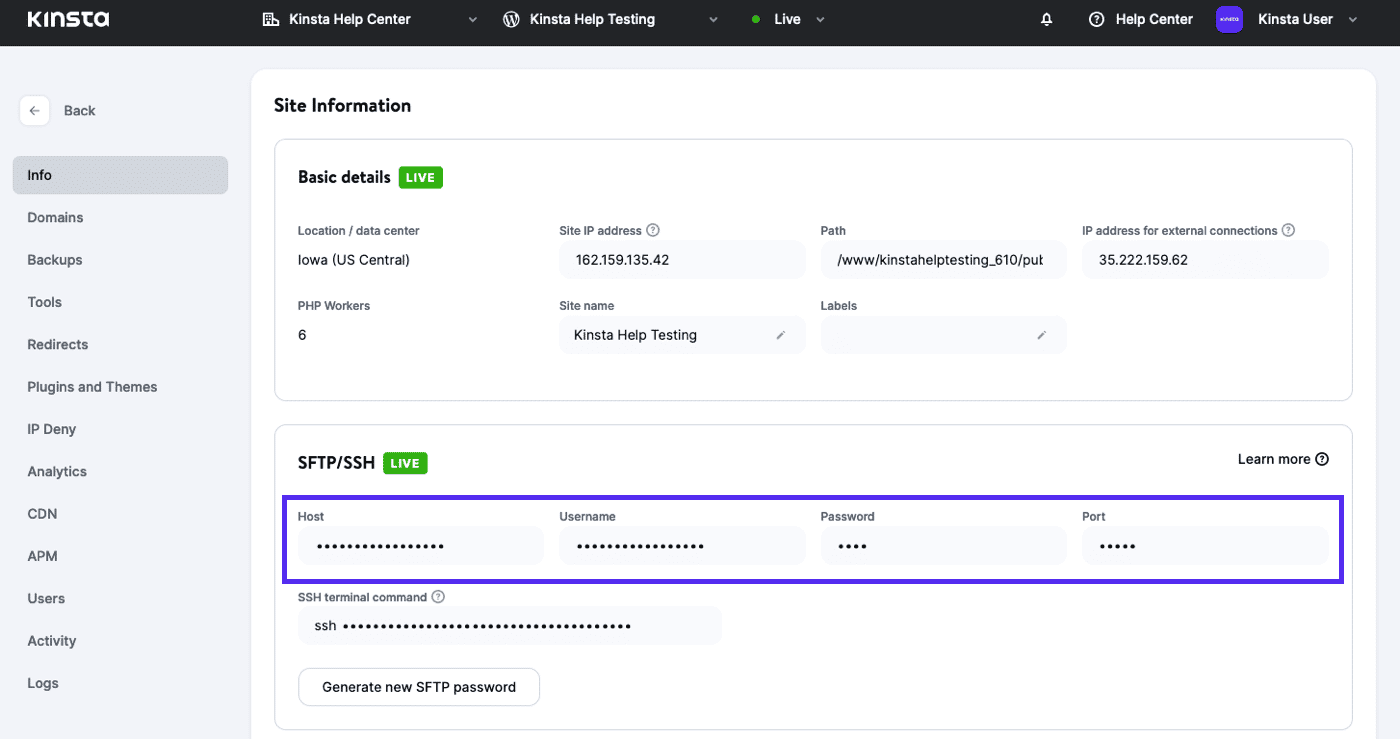
How to Use SFTP Clients – Examples
Below are examples showing how to log in using several well-known SFTP clients.
SFTP Login With FileZilla Client

Note: Some versions of FileZilla may default to using FTP, so be sure to explicitly choose SFTP, or prefix your server address with sftp:// (such as sftp://123.123.12.123). If you don’t, you may encounter connection errors.

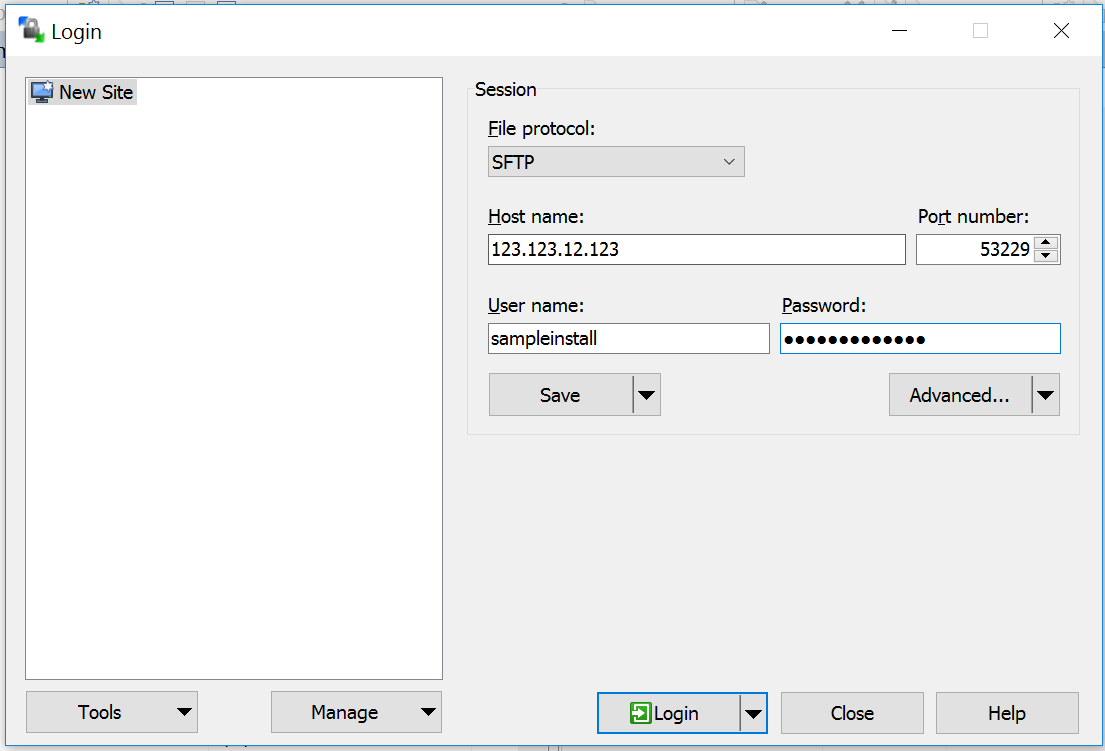
SFTP Login With WinSCP Client
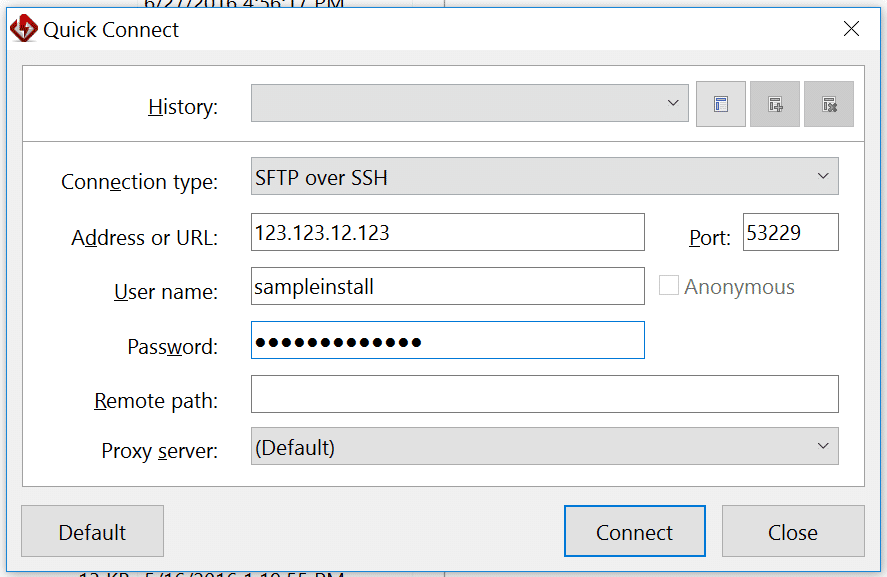
SFTP Login With FlashFXP Client
Connecting via Command Line
If you prefer using command line (Linux, macOS, or Windows with SSH tools):
sftp -P <port> <username>@<hostname>- Replace
<port>with your port (if not 22) - Replace
<username>and<hostname>accordingly - Once connected, you can use commands like
ls,cd,get,put,rm, etc.
Example:
sftp -P 2222 [email protected]Then:
sftp> cd public_html/wp-content
sftp> get wp-config.php
sftp> put new-theme.zip
Things to Be Careful About / Tips
Use SFTP, not plain FTP — because SFTP is encrypted, FTP sends credentials in plaintext. The WordPress docs themselves recommend SFTP when supported. WordPress Developer Resources
Make sure you’re connecting to the correct directory where WordPress is installed (often something like public_html, www, or htdocs).
File and folder permissions matter. If permissions are too restrictive, you might not be able to write or update files.
If WordPress refuses plugin/theme updates and asks for FTP credentials in wp-admin, you might need to enable SFTP or set constants in wp-config.php (like FS_METHOD = 'direct') — though this is more advanced and depends on your server setup. Stack Overflow+2WordPress Development Stack Exchange+2
If the SFTP client shows “host key changed” or “host key mismatch”, you may need to update or remove old entries in your known_hosts file.
Always make backups before editing core files or making major changes.