
In this document page, we want to see what the Attention Popover feature is and how you can use it in the KimaAI plugin.
What is Attention Popover in the KimaAI plugin?
The Attention Popover feature in KimaAI helps you introduce the AI assistant to visitors before they open the chatbot. In KimaAI, the chatbot is designed to be highly customizable, and the platform explicitly supports an optional attention popover as part of that experience. This makes it useful for drawing attention to the assistant, setting expectations, and prompting visitors to start a conversation at the right moment.
What the Attention Popover does
The Attention Popover is a small message bubble that appears near the chatbot widget after the page loads. Its job is simple: catch the visitor’s attention and invite them to interact with the assistant.
Instead of waiting for users to notice the chatbot icon on their own, the popover gives the assistant a visible introduction. This can be helpful when you want to:
- greet visitors,
- suggest what the assistant can help with,
- promote common support or sales actions,
- increase chatbot engagement.
A short, relevant popover message can turn the chatbot from a passive widget into a more active assistant.
What the website admin can control
The website admin can configure several parts of the Attention Popover.
Enable Attention Popover
This toggle turns the feature on or off.

When enabled, the popover can appear before the chatbot is opened. When disabled, the chatbot remains available, but no introductory popover is shown.
Use this when:
You want to make the chatbot more noticeable without changing the core widget itself.
Show Quick Actions in Attention Popover
This option allows the admin to include quick action buttons inside the popover if quick actions have already been defined.
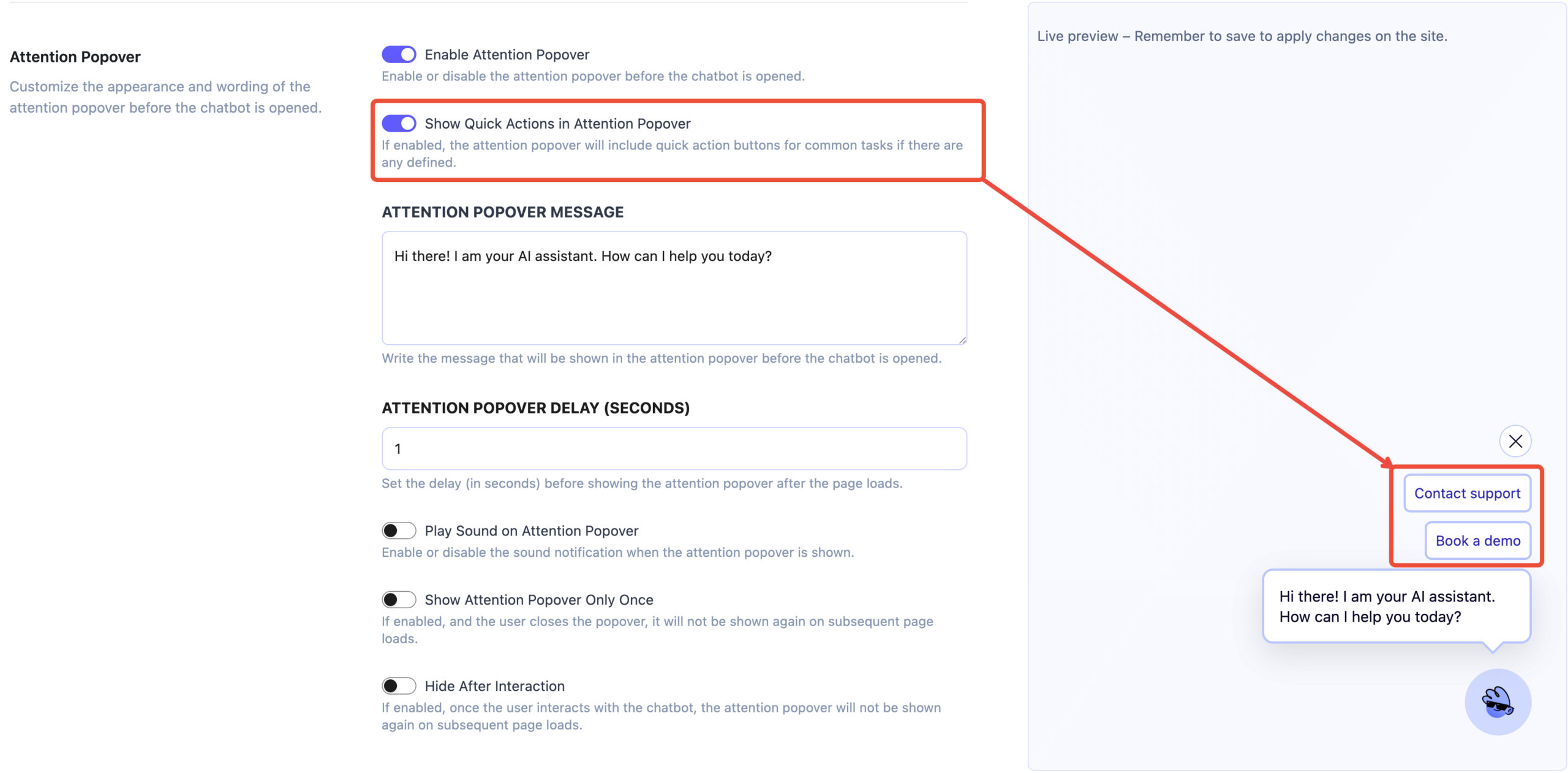
That means the popover can do more than just display a greeting. It can also give users one-tap shortcuts to common tasks, such as:
- Ask about pricing
- Contact support
- Book a demo
- Learn about services
- Browse help topics
This setting helps connect the popover to the wider chatbot workflow.
Use this when:
You want the popover to act like a mini call-to-action panel, not just a text prompt.
Attention Popover Message
This field lets the admin write the message that appears inside the popover.
Example:
Hi there! I am your AI assistant. How can I help you today?
This is the most important content field in the feature, because it shapes the first impression visitors get from the assistant.
A good popover message should be:
- short,
- clear,
- friendly,
- relevant to the website,
- action-oriented.
Good examples:
- Hi there! Need help finding the right plan?
- Have a question about our services? Ask me here.
- I can help you find answers from our documentation.
- Need support? Start with one of the quick options.
Best practice:
Avoid long paragraphs. The popover works best as a short invitation, not a full explanation.
Attention Popover Delay (Seconds)
This setting controls how many seconds KimaAI waits after page load before showing the popover.
For example, if the delay is set to 1, the popover appears almost immediately after the page loads.
This gives the admin control over timing:
- a short delay makes the assistant highly visible right away,
- a longer delay feels less intrusive and gives visitors time to settle on the page first.
Suggested usage:
- 0–2 seconds: for landing pages or support-heavy pages
- 3–5 seconds: for general pages where you want a softer entrance
- longer delays: when the popover should feel more passive
Play Sound on Attention Popover
This option attempts to play a sound when the attention popover is shown. However, website admins should be aware that modern browsers often block audio playback until the visitor has interacted with the page first.
In practice, if the popover appears before the user clicks, taps, or otherwise interacts with the website, the sound may not play at all. Browser autoplay policies commonly require a user gesture before audio can start, and blocked playback may fail with a NotAllowedError. Chrome documents this as part of its autoplay policy, and MDN gives the same guidance for both media playback and Web Audio.
It is also important to separate browser playback restrictions from site-level consent. Browsers do not usually show a dedicated permission prompt just to play a normal UI sound, but autoplay can still be blocked unless the user has already engaged with the page or the browser otherwise allows it. From a product and compliance perspective, many sites still choose to include clear consent or preference controls before enabling non-essential sounds, especially for regions or setups where user preference and consent management matter. The safest implementation is to treat popover sound as an optional enhancement, not a guaranteed behavior. (MDN Web Docs)
For that reason, we recommend leaving this setting off in most cases. It was added mainly to support websites with heavy support workflows, or cases where users are already logged in, engaged, and actively interacting with the site, which makes audio playback more likely to work as intended and less likely to feel intrusive. For most public-facing websites, a silent popover provides a cleaner and more reliable experience.
Use this when:
- the chatbot is a key support channel,
- you want stronger attention-grabbing behavior,
- The site experience supports audio cues.
Use caution when:
- your audience may find sound distracting,
- the page is meant to feel quiet or minimal,
- users may browse in work or public environments.
In most cases, sound is best not being used at all.
Show Attention Popover Only Once
When this option is enabled, and the user closes the popover, it will not be shown again on subsequent page loads.
This helps reduce repetition and prevents the feature from becoming annoying for returning visitors.
Use this when:
You want the popover to function as a one-time introduction rather than a recurring prompt.
This is usually a good choice for user experience, especially on content-heavy or frequently visited sites.
Hide After Interaction
When enabled, once the user interacts with the chatbot, the attention popover will no longer be shown again on subsequent page loads.
This is helpful because once a visitor has already engaged with the assistant, the introduction is no longer necessary.
Use this when:
You want the popover to be shown only until the visitor has discovered and used the chatbot.
For many websites, this is one of the most practical settings because it keeps the experience clean for returning users.
Why this feature matters
The Attention Popover is a small feature, but it can have a real impact on chatbot discoverability.
On many websites, the chatbot icon sits quietly in the corner and may go unnoticed. The Attention Popover solves that by giving the assistant a short introduction at the right time. In practice, this can help:
- increase chatbot opens,
- guide visitors faster,
- reduce confusion,
- highlight support or sales paths,
- encourage users to explore what the AI assistant can do.
If your site has common user intents, quick actions can reduce friction and help users start faster.
Avoid being too intrusive
A popover is helpful when it feels relevant. Too much text, instant sound, or repeated appearances can hurt the experience.
Example use cases
For a documentation website
Message:
Need help finding something in the docs? Ask me here.
For a service business
Message:
Hi there! I can help you learn about our services or answer common questions.
For a support page
Message:
Need support? Start by asking your question here.
For a product page
Message:
Want help choosing the right option? I’m here to help.
Final thoughts
The Attention Popover Feature in KimaAI is a simple but useful way to make your chatbot more visible and more inviting. It gives website admins control over whether the popover appears, what it says, when it appears, whether it includes quick actions, whether it plays a sound, and how often visitors see it.
Used well, it can improve the first interaction between your visitors and the AI assistant, while still keeping the experience lightweight and user-friendly.


