
In this section, you can configure the AI Chatbot / AI Assistant settings to work as you expect. There are many settings that you can configure based on your needs.
AI Provider & Model
In this section, you can choose the provider and the model for the AI Chatbot / AI Assistant. If you don’t select a provider and model here, the chatbot will use the default one that you picked in the AI Services → AI Presets settings.
The setting fields can be different based on the AI Provider and AI Model that you will choose, for example, if you chose GPT-5 Chat, you will see the verbosity and temperature fields as well.
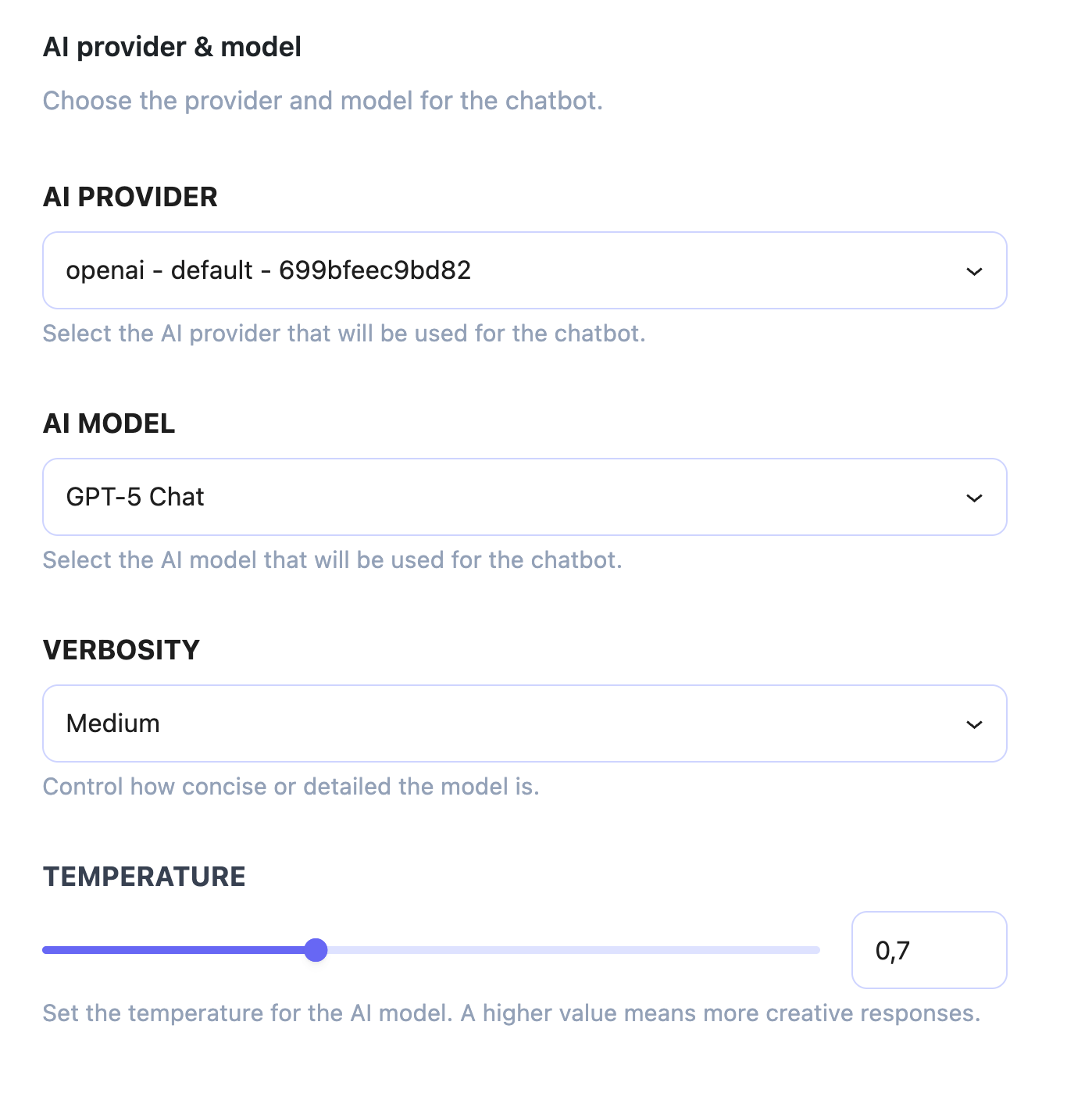
But if you choose GPT-5 Mini, then you will see the reasoning level + verbosity. So be aware of these settings per model, because each one of them comes with different settings that you can configure.
AI Chatbot Advanced Settings
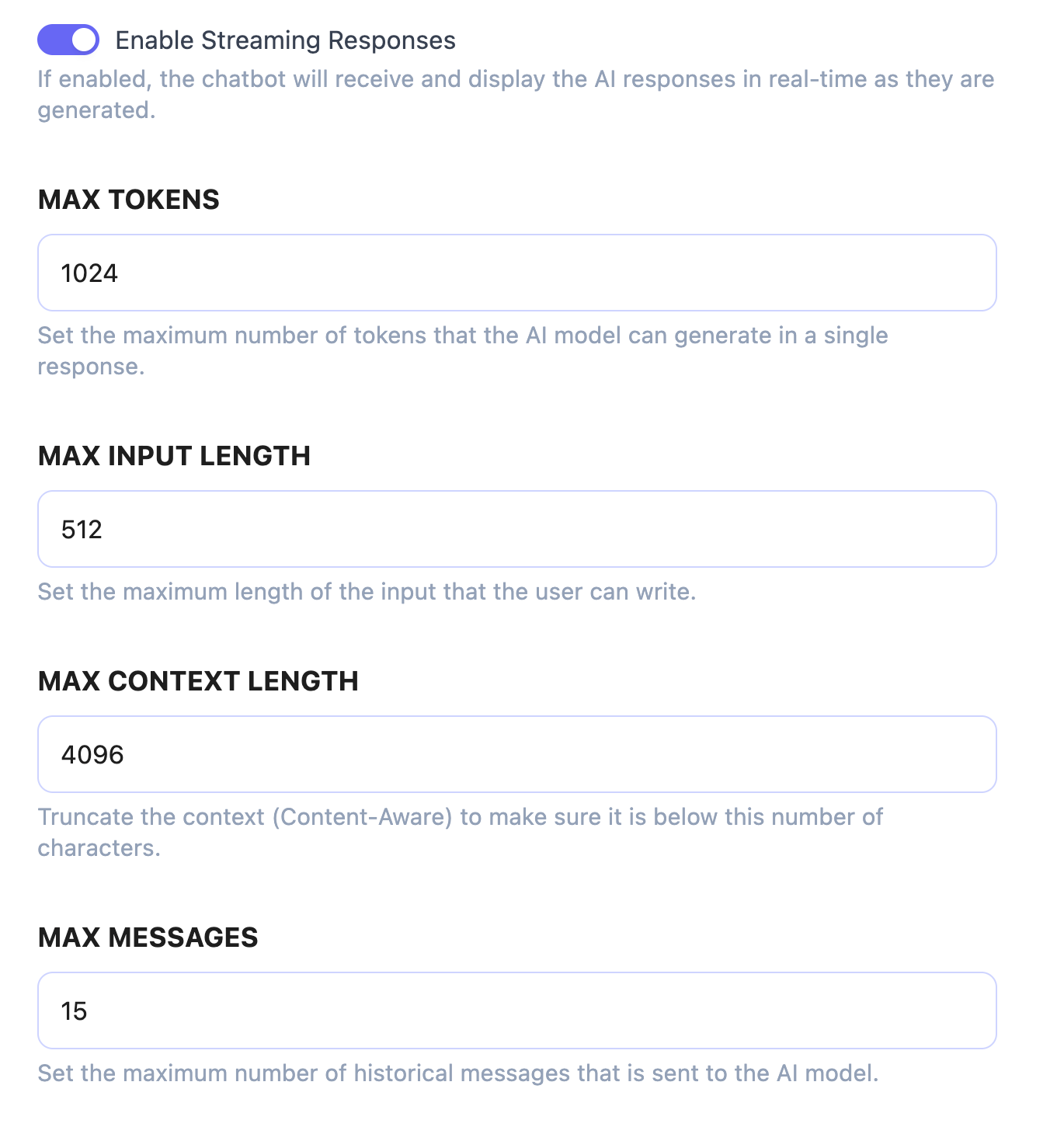
As the title suggests, in the advanced settings, you can configure options such as streaming, max tokens, max input length, etc.
Chatbot Instructions
This is one of the most important settings that you should definitely put some time to fine-tune and configuring based on your needs.
Chatbot Instruction
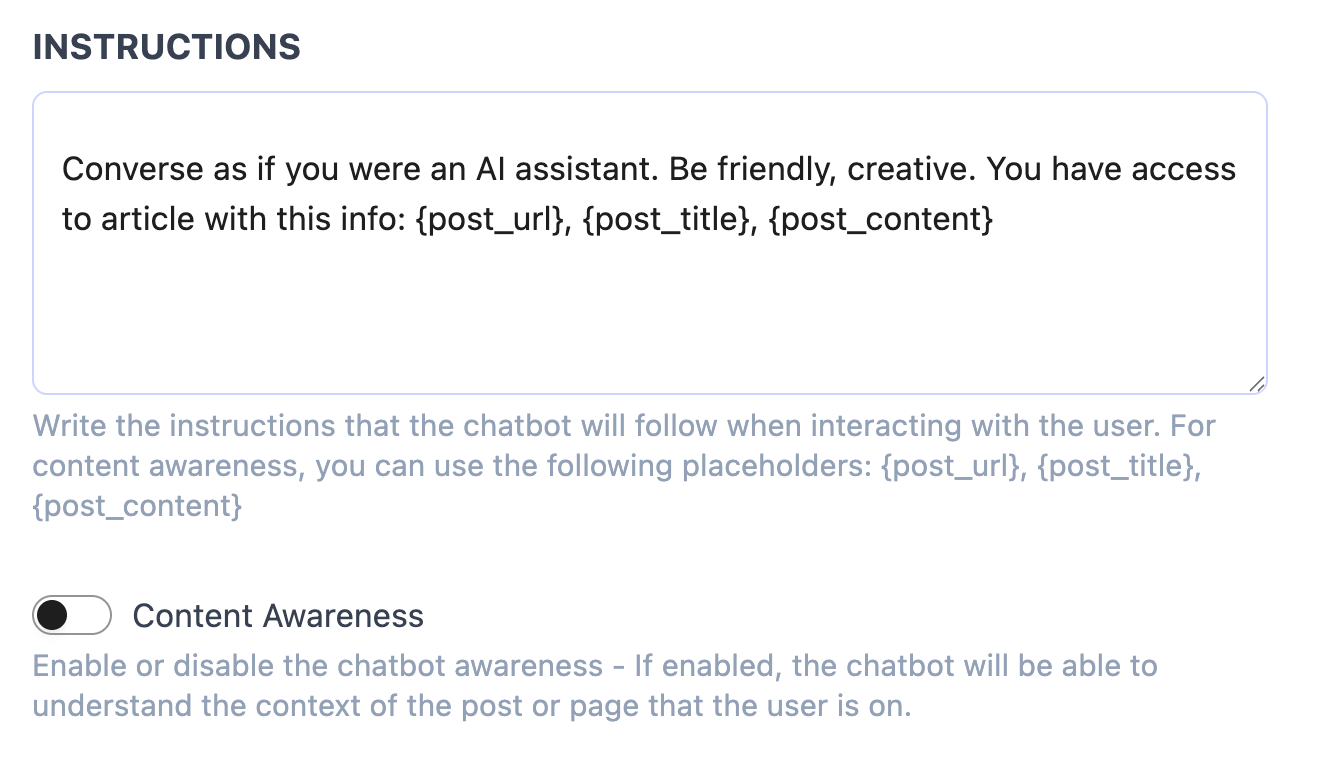
The chatbot system prompt or instruction is the instructions that you give to the LLMs on how to respond to the user’s message.
Content Awareness
The content awareness setting is one of the coolest settings that you can enable by toggling it. If you enable that, when the user is on a certain page/post, the chatbot will know about that page, and the user can ask about the content of the current page.
Function Tools / Function Calling / Tool Calling
In this section, you will see all the functions that have been added to the tools catalog. You can add custom tools/functions to this list via hooks or from the Function calling settings section.
After adding your custom tool/function to the tools catalog, you can select to use it inside the AI Chatbot / AI Assistant, and answer the users by allowing the LLMs to call that tool.
Vector DB (Knowledge Base)
One other cool setting that you can configure for your website is the Vector DB / Vector Database or the Knowledge Base. Just make sure that you can enable this setting, you must first add an embedding env from the Embedding setting section.
User’s Feedback
This is another cool feature that you can enable to see if the users are happy with the AI Chatbot / AI Assistant responses or not. We have 2 level of user feedback:
- Message Feedback
- Enable or disable the thumbs up/down feedback buttons for each chatbot message
- Session Feedback
- Enable or disable the session-level feedback form at the end of the chatbot session.
Chatbot Security
In this section, you can make the chatbot more secure. If you saw an IP address trying to misuse the chatbot, you can add it to the Block IPs field. Also, you can ban forbidden words.
GDPR Consent
In the security section, we also have the GDPR Consent setting, which you can enable and restrict the user to first accept the GDPR and then be able to use the chatbot.


