

The glossary holds your official terminology. For each term you set the approved wording, and the chatbot is told to use that wording in every answer. It keeps product names, services and materials consistent, even when a visitor or one of your own pages words them differently.
Set it up
- In the KimaAI admin, go to Knowledge → Glossary.
- Select New term.
- Enter the Term: the product, service or concept the rule is about.
- Enter the Approved wording: the words the chatbot must use for it.
- Add Notes (optional) if the chatbot needs to know why, or when the rule applies.
- Leave Enabled on and select Add. The term is saved at once.
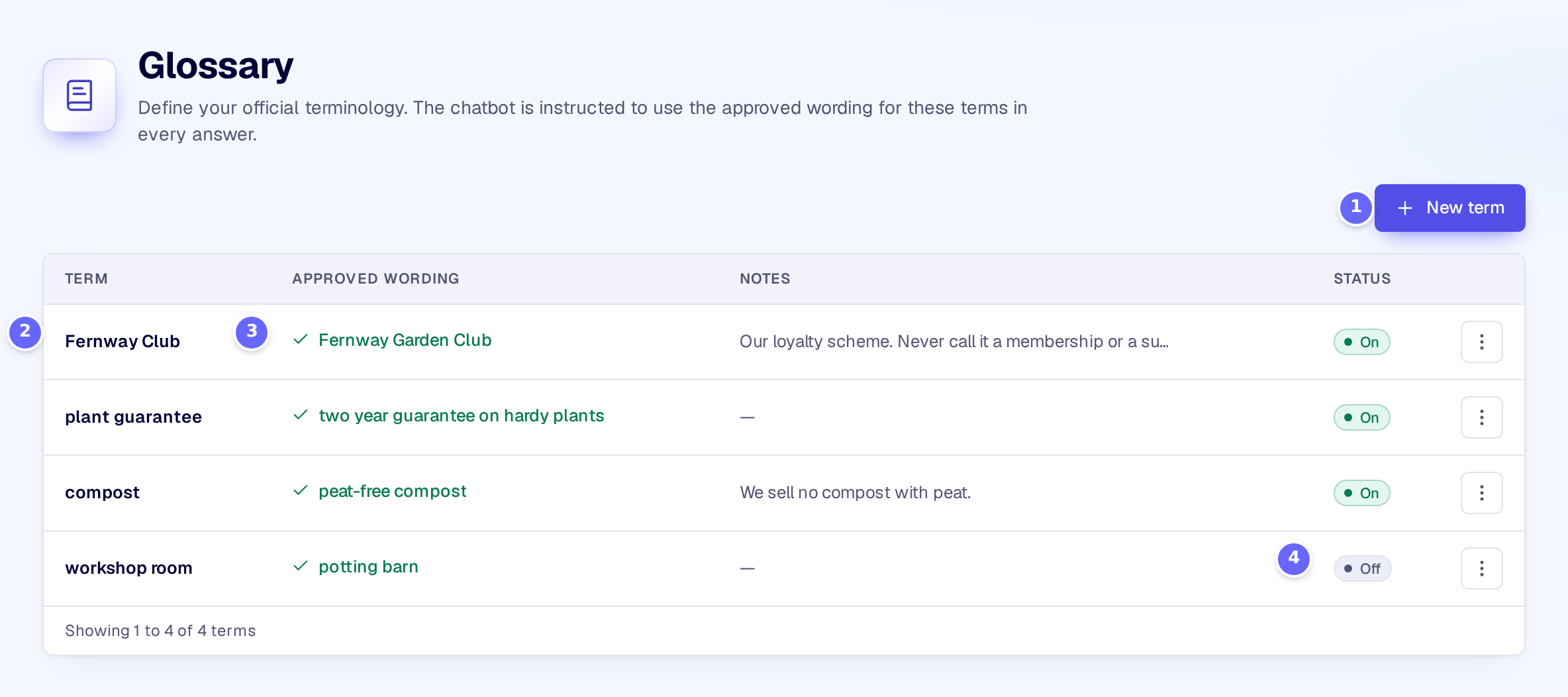
- New term adds a term.
- The term.
- Its approved wording.
- Off: a term that is switched off stays in the list but is not sent to the chatbot.
Select a term in the list to change it:
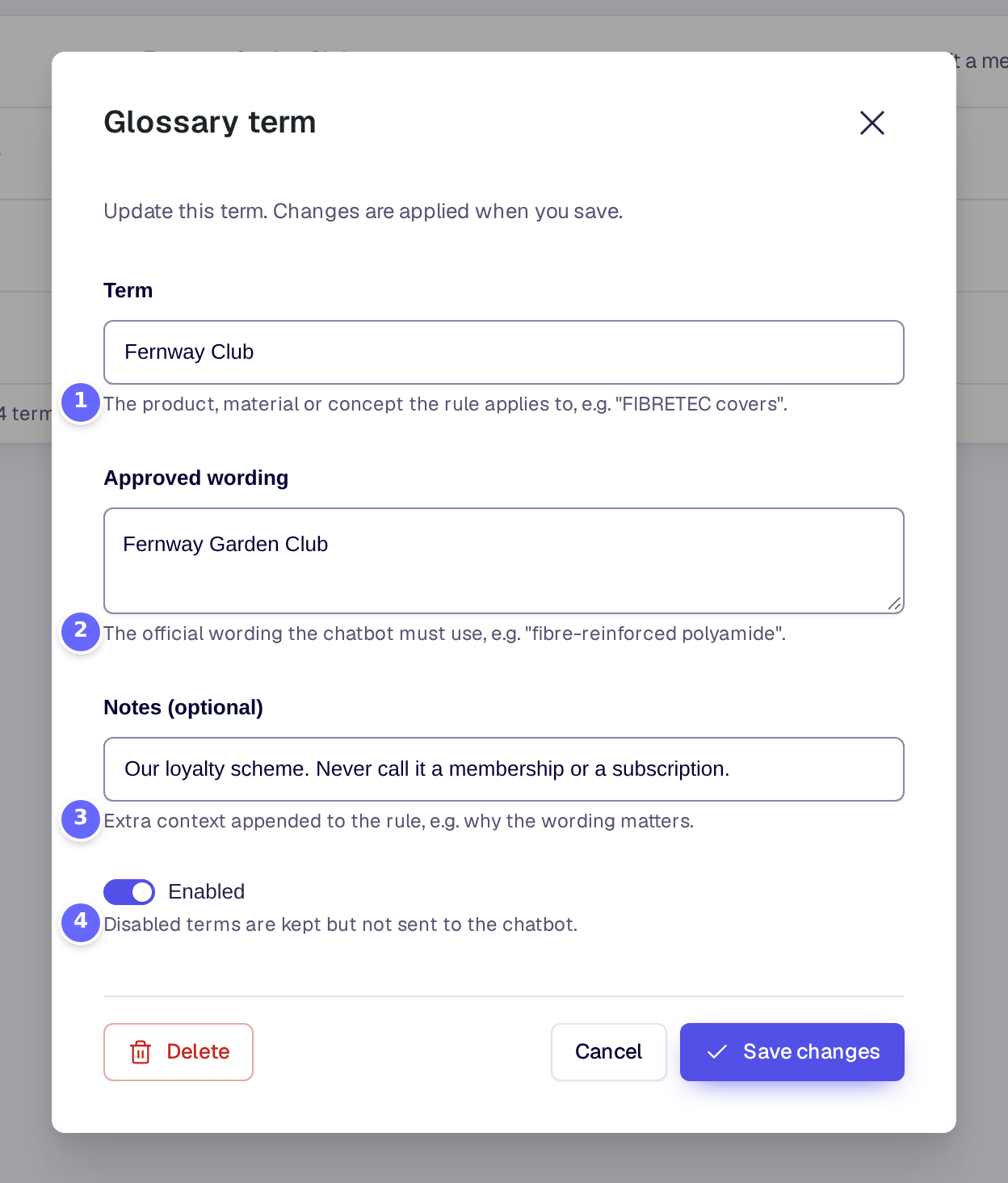
- Term: what the rule applies to.
- Approved wording: what the chatbot says.
- Notes (optional): extra context for the chatbot.
- Enabled switches the term on or off.
Settings
Glossary term
| Setting | What it does |
|---|---|
| Term | The product, material or concept the rule applies to. |
| Approved wording | The official wording the chatbot must use for the term. On a multilingual site it can be translated. |
| Notes (optional) | Extra context added to the rule, for example why the wording matters. It is the same in every language. |
| Enabled | A term that is switched off is kept in the list but not sent to the chatbot. |
How it works
- The glossary is added to the chatbot’s instructions as mandatory terminology rules, one line per term: the term, and that it must always be called by its approved wording. A term’s notes follow on the same line.
- Only terms that are switched on and have both a term and an approved wording are sent. There is no limit on their number, but every term makes each request to the AI provider a little longer.
- With at least one rule, the chatbot is also told to take product and material names word for word from your content and not to invent terms.
- The rules go at the end of your instructions. To place them elsewhere, write
{glossary}in the chatbot’s instructions on Chatbot → Behaviour: the rules replace it. - The terms you never want in an answer are part of the same rules: set them in Guardrails.
- On a site with WPML or Polylang, the approved wording of each term is a string you translate there, so each language gets its own wording (Multilingual).
Troubleshooting
- The chatbot still uses another word. Check that the term is switched on and has an approved wording. The rules are instructions to the AI model, not a search and replace: a model follows them in almost every answer, but they are not a guarantee. Test the term with a quality evaluation case that must not include the old word.
Related
- Guardrails: the words the chatbot must never use.
- Pinned answers: fixed answers to single questions.
- Quality evaluation: check that answers keep the approved wording.