

An AI environment is one connection to an AI provider: the provider and your API key for it, under a name you choose. KimaAI sends every request to the AI through an environment, so you need at least one before the chatbot can answer. You can add several, for example one key for the chatbot and another for syncing your content, or a second provider to try other models.
KimaAI works with three providers: OpenAI, OpenRouter (many models behind one key) and Ollama (models on your own server).
Set it up
- Get an API key from your provider. For OpenAI, see Set up your OpenAI account and API key.
- In the KimaAI admin, go to Connections and open the AI environments tab.
- Select Add environment.
- Give it a Name you will recognise later, such as “Shop chatbot”.
- Choose the Provider.
- Paste the API key. For Ollama, enter the Endpoint of your Ollama server instead.
- Under Connection test, select Test now. KimaAI tries the key with the provider and shows Connected, or the provider’s error.
- Select Add to save the environment.
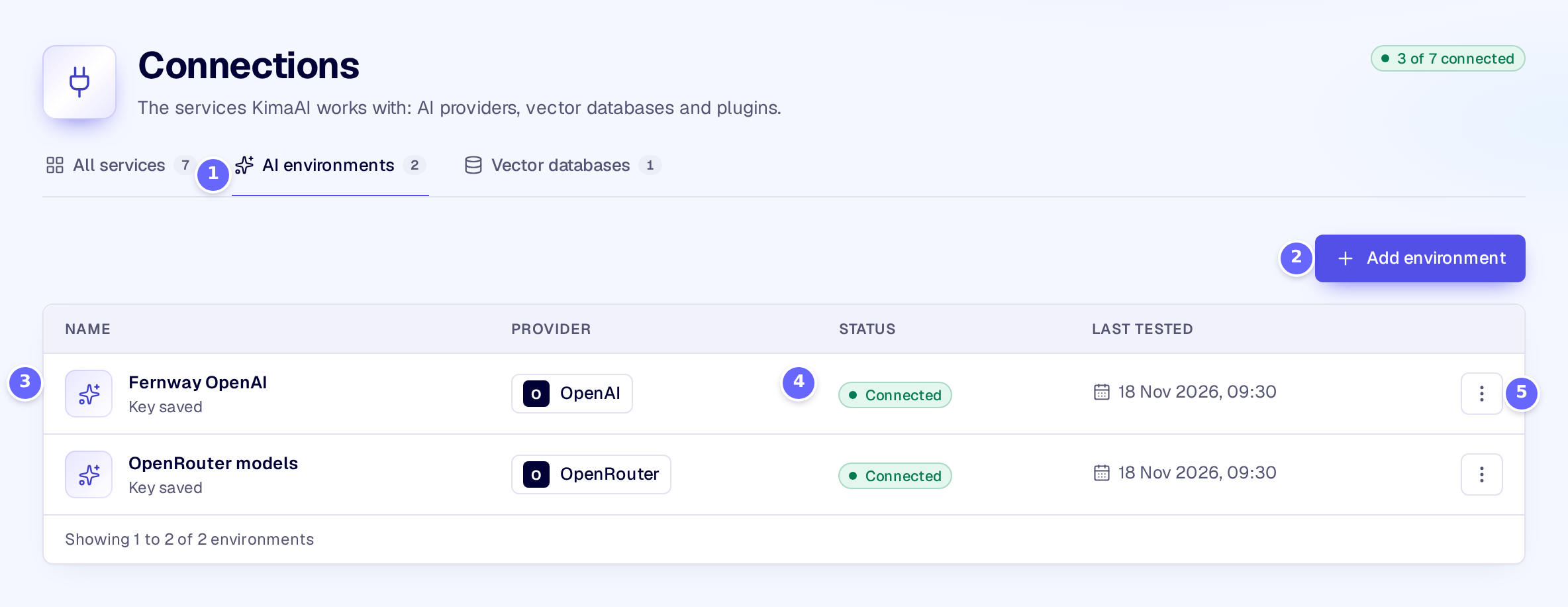
- AI environments lists every environment of the site; the number is how many there are.
- Add environment opens an empty environment in a side panel, titled Add environment; an environment you open from the list is titled Edit environment.
- Each row shows the environment’s name, and under it whether a key is saved.
- The status of the last connection test: Connected, Needs attention when it failed, Not tested when a key is saved but was never tested.
- The row’s menu: Edit, Test connection, Duplicate and Delete.
Select a row to open the environment:
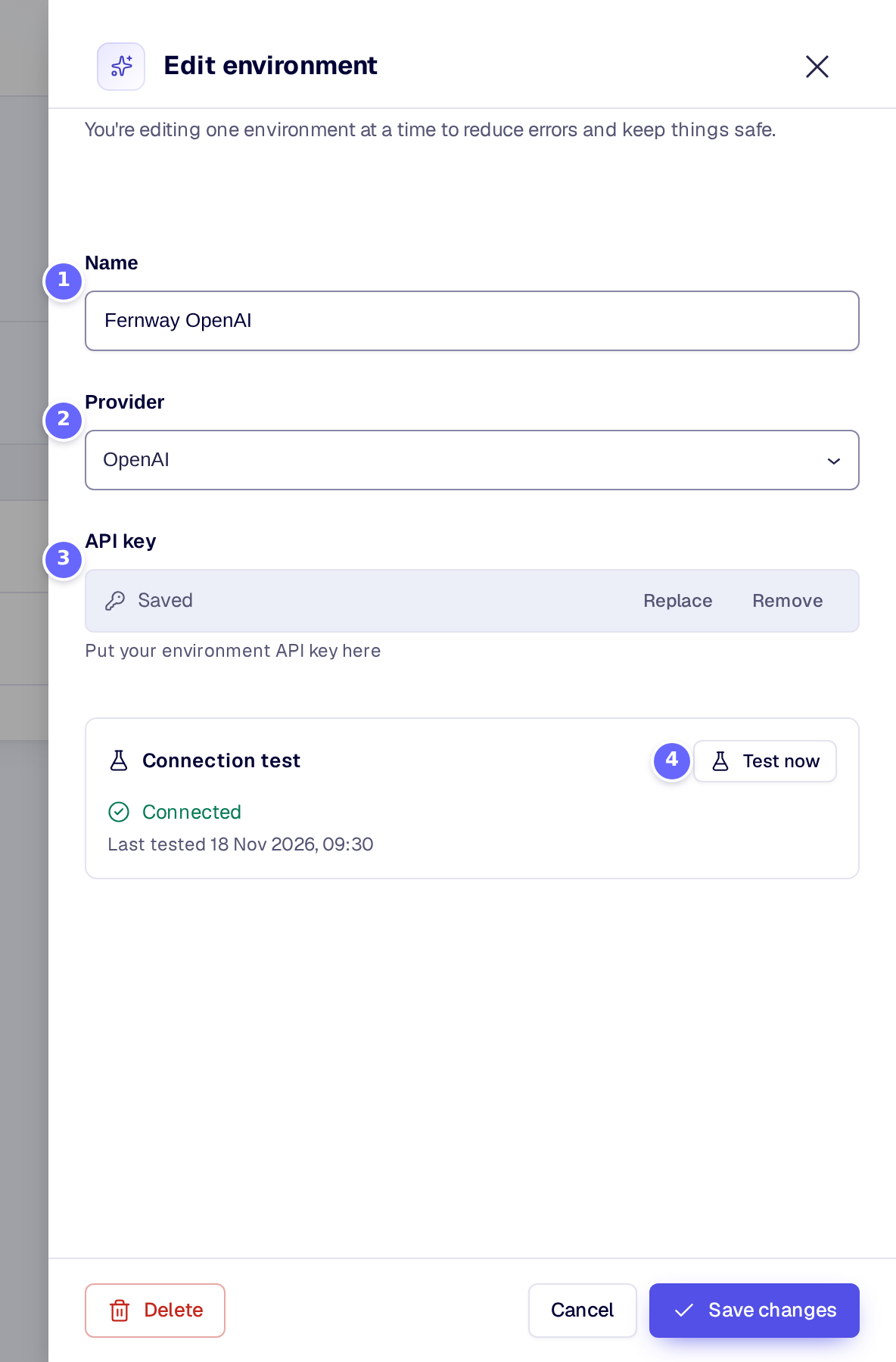
- Name: how the environment appears where you choose one, for example on Chatbot → Behaviour.
- Provider: OpenAI, OpenRouter or Ollama.
- API key: a saved key shows as Saved. Replace sets a new one, Remove deletes it when you save.
- Test now tries the environment as it is in the panel, before you save it.
Then choose the environment where it is used: the chatbot’s AI environment on Chatbot → Behaviour (see AI models), and the AI environment of a vector database for the knowledge base (see Embeddings).
Settings
| Setting | What it does |
|---|---|
| Name | The name the environment has wherever you choose one. Required. |
| Provider | The AI provider: OpenAI, OpenRouter or Ollama. |
| API key | Your key for the provider. Required for OpenAI and OpenRouter; Ollama has none. |
| Endpoint | The address of your Ollama server. Shown and required only when the provider is Ollama. |
How it works
- Keys stay on the server. Once saved, a key is never sent back to the browser: the admin shows Saved instead. An export of the settings leaves keys out too (see Export and import settings).
- A key belongs to its provider. When you change an environment’s provider or endpoint, the saved key is not used for the new one: enter the key again.
- The test result is kept. The last connection test of each environment is stored, so its status still shows after a reload. When you change the key, provider or endpoint, the old result no longer shows.
- Each environment is counted on Connections. On the All services tab, the OpenAI, OpenRouter and Ollama cards show how many environments use that provider and whether one of them needs attention. The setup checklist on Home ticks Connect an AI provider once one is connected (see Setup checklist).
Troubleshooting
- The status says Needs attention. The last test failed. Open the environment, check the key with your provider (a typo, an expired key, or no credit on the account) and select Test now again.
- Test now cannot be selected. The test needs a name and a key first; for Ollama, a name and the endpoint.
- The chatbot shows “no longer available, choose another environment”. The environment the chatbot used was deleted. Choose another one under AI environment on Chatbot → Behaviour.
- Ollama does not connect. Your WordPress server must reach the Ollama server at the endpoint you entered. An address such as
localhostmeans the WordPress server itself.
Related
- AI models: which environment and model write the chatbot’s answers.
- Embeddings: the environment that turns your content into embeddings.
- Set up your OpenAI account and API key: getting a key from OpenAI.