

With the WooCommerce connection, the chatbot answers questions about your products from your shop’s live data: what a product costs, whether it is in stock, which products fit what a visitor is looking for, and which ones are similar to a product they like. The products it finds show as cards in the chat, with their picture, price and a button to add them to the cart or open the product.
Each of the three abilities is switched on separately, and each has its own instructions for the AI.
Set it up
- Install and activate WooCommerce on your site.
- In the KimaAI admin, go to Connections. Under Plugins and agents, select the WooCommerce card.
- In the panel, turn on Enable.
- Turn on what the chatbot may do: Display product details, Product recommendations and Similar products. Each one shows its instructions once it is on.
- Adjust the instructions if you want the chatbot to work differently, or keep the ones KimaAI suggests.
- Select Save. The card on Connections now shows Connected.
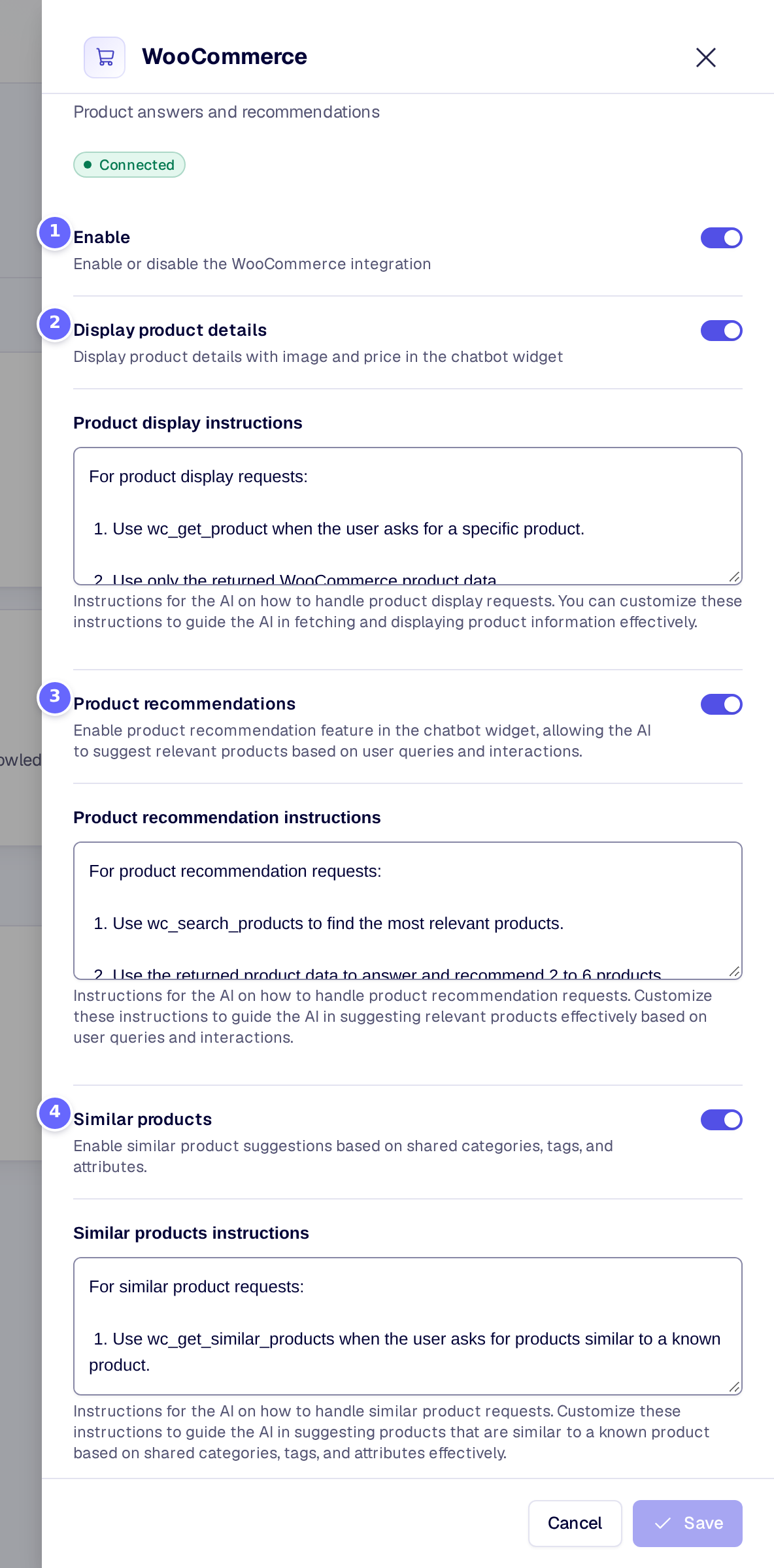
- Enable switches the connection on.
- Display product details: the chatbot fetches a product’s data and shows it as a card.
- Product recommendations: the chatbot searches your products and suggests some.
- Similar products: the chatbot finds products that share categories, tags and attributes with one the visitor names.
Settings
| Setting | What it does |
|---|---|
| Enable | Switches the WooCommerce connection on. The other settings show once it is on. |
| Display product details | Lets the chatbot look up a product by its ID and show its details, with picture and price, in the chat. |
| Product display instructions | What the AI is told about showing products. Added to the chatbot’s instructions while Display product details is on. |
| Product recommendations | Lets the chatbot search your products and recommend some that fit the visitor’s question. |
| Product recommendation instructions | What the AI is told about recommending products. Added to the chatbot’s instructions while Product recommendations is on. |
| Similar products | Lets the chatbot suggest products similar to one it knows, by shared categories, tags and attributes. |
| Similar products instructions | What the AI is told about similar products. Added to the chatbot’s instructions while Similar products is on. |
How it works
- Each ability gives the chatbot a tool it can call while it answers: one fetches a product’s data, one searches the shop, one finds similar products. The chatbot only gets the tools of the abilities you switched on, and they need no entry under Allowed functions on Function tools.
- The data is read live from WooCommerce when the chatbot needs it: name, price, sale price, stock status, rating, description and picture. Nothing is copied into the knowledge base for this.
- A search or a list of similar products returns at most 12 products, 6 unless the AI asks for another number. The suggested instructions ask for 2 to 6.
- A product card’s button adds a simple product that is in stock to the cart in one click. Other products, such as variable ones, link to their product page, with WooCommerce’s own button label.
Troubleshooting
- The card says Plugin not active. WooCommerce is not active on this site. Activate it under Plugins, then open the panel again.
- The chatbot does not mention products. Check that Enable and the ability are both on, and that the products are published. Then ask a question that clearly needs the shop, such as “Which watering cans do you have?”.
- The answers ignore my wording. The instructions are suggestions to the AI, not rules. Make them more specific, or add the rule to the chatbot’s own instructions on Chatbot → Behaviour.
Related
- Function tools: your own PHP functions the chatbot may call.
- AI models: the model that answers and calls the tools.
- Chatbot: where the chatbot shows on your site.