

The chatbot answers your visitors’ questions on your site, at any time of day. It sits behind a launcher button in a corner of every page, or wherever you place it, and writes its answers with the AI model you connect. Your instructions tell it who it speaks for, how it speaks and what it never says.
Set it up
- Connect an AI provider on Connections, for example OpenAI with your API key. See AI environments.
- Go to Chatbot → Behaviour. In the Model card, choose the AI environment and the Model that write the answers. See AI models.
- In the Instructions card, write the Instructions: who the chatbot works for, what it helps with, its tone, and what it must not do. New sites start with instructions you can adapt.
- Turn on Add the current date if visitors ask about dates, events or deadlines.
- Select Save changes.
- Go to Chatbot → Appearance. In the Launcher card, Show on every page is on: the chatbot shows on every page of your site. Turn it off to show the chatbot only where you place the AI chat block or the
[kimaai_chatbot]shortcode. - Open your site and ask the chatbot a question.
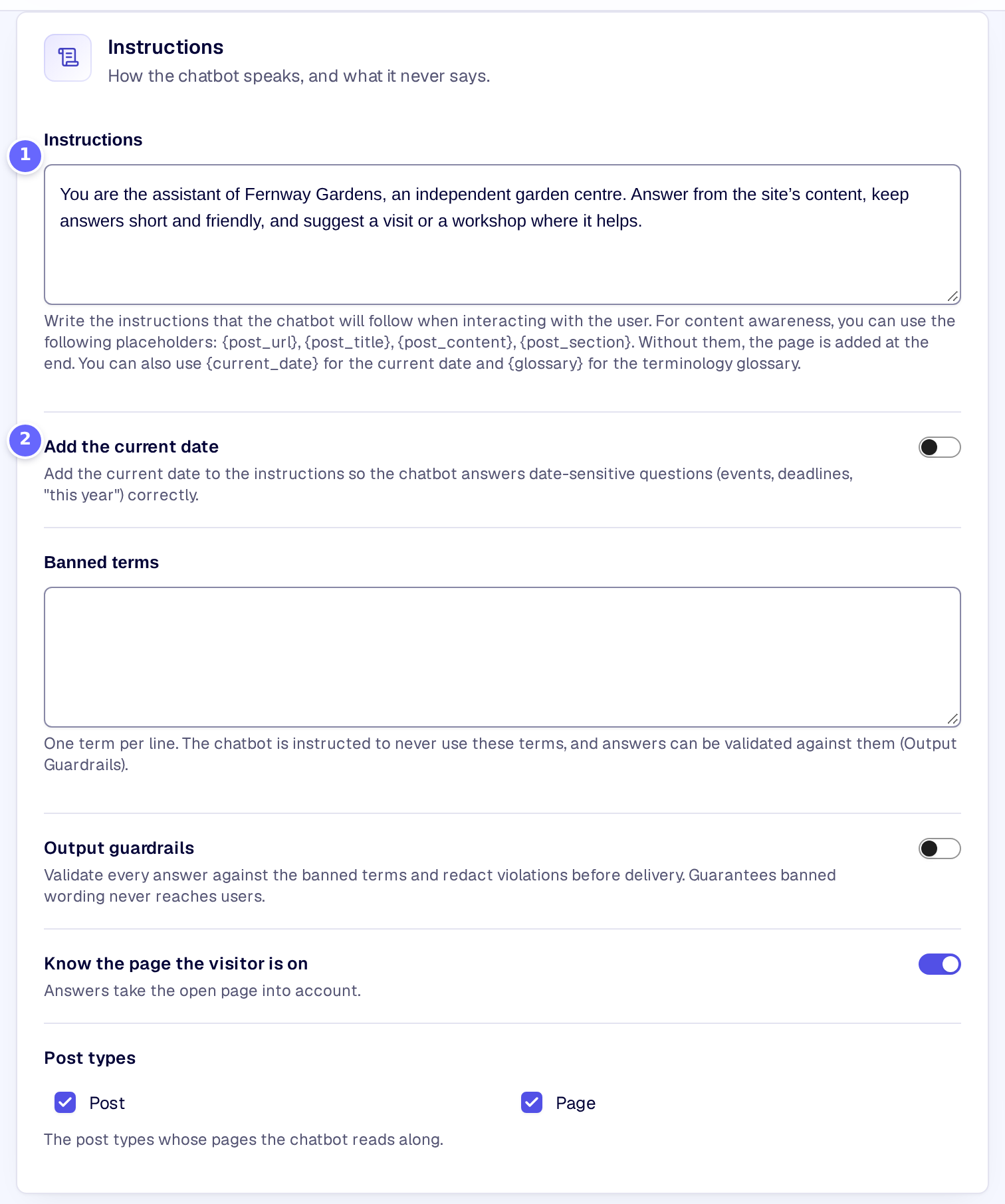
- Instructions are what the chatbot follows in every conversation.
- Add the current date gives the chatbot today’s date with every question.
Visitors open the chat from the launcher and ask their question:
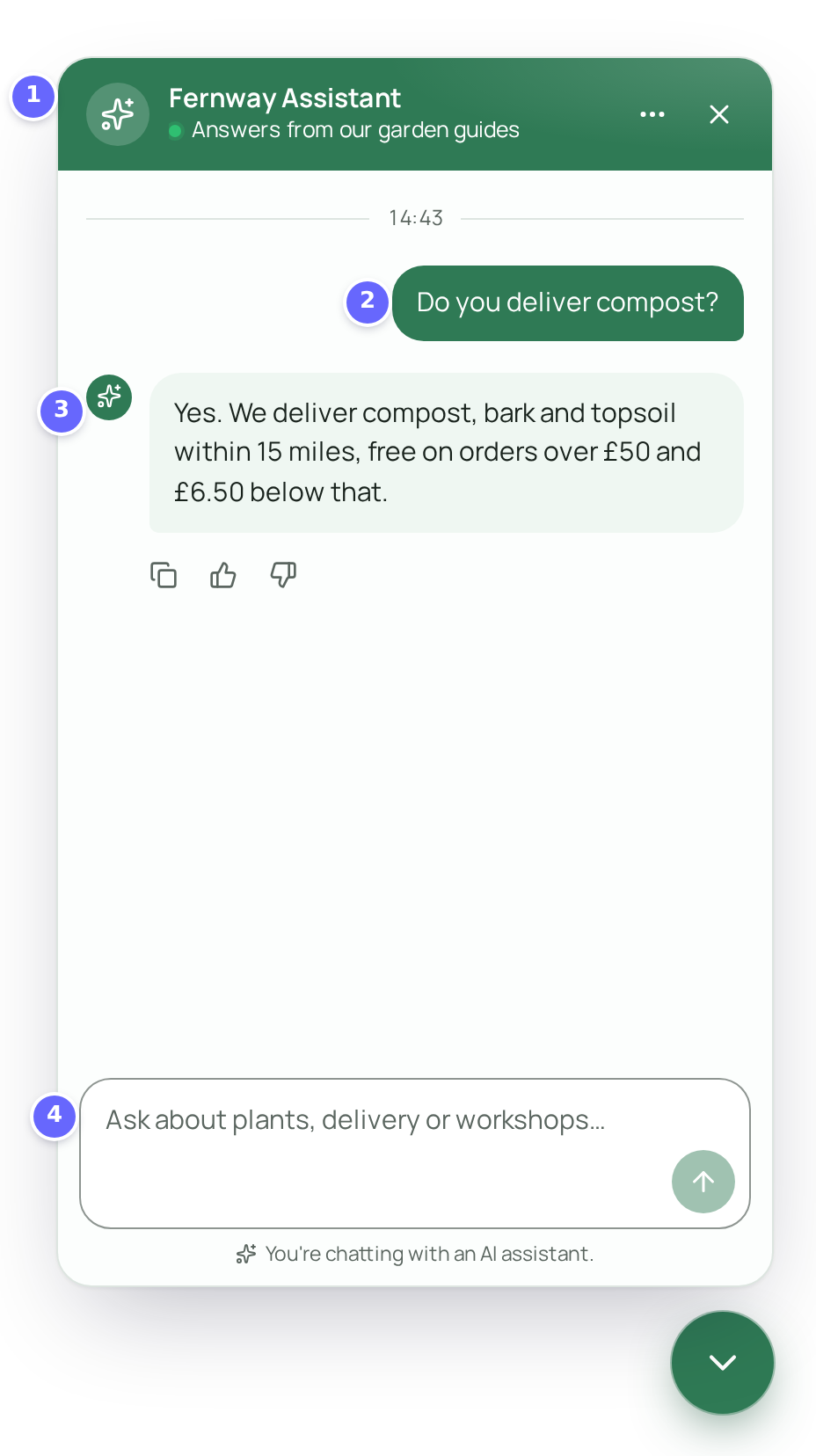
- The chatbot’s name and the line under it, as set on Chatbot → Appearance.
- The visitor’s question.
- The chatbot’s answer.
- The message field, where visitors write.
Settings
Instructions
| Setting | What it does |
|---|---|
| Instructions | What the chatbot follows in every conversation: its role, its tone and its rules. Placeholders in curly brackets are replaced with live values (see “How it works”). |
| Add the current date | Adds a line with today’s date to the instructions, so the chatbot answers questions about events, deadlines or “this year” correctly. |
The other settings of the Instructions card belong to Content awareness and Guardrails.
How it works
The instructions can hold placeholders in curly brackets, which the chatbot fills in for every question:
| Placeholder | Replaced with |
|---|---|
{post_url} | The address of the page the visitor is on, when content awareness is on. Without any of the page placeholders, the page is added at the end of the instructions (Content awareness). |
{post_title} | The title of that page. |
{post_content} | The text of that page. |
{post_section} | The part of that page the visitor is reading. |
{current_date} | Today’s date, in your site’s time zone. The date goes where you put it, whether Add the current date is on or not. |
{glossary} | Your glossary terms and banned terms. Without the placeholder they are added at the end of the instructions (Glossary). |
- Add the current date adds the date at the end of the instructions, for example “Current date: Thursday, November 19, 2026 (2026-11-19).”, unless the instructions use
{current_date}. - With Show on every page on, the chatbot shows on every page of the site. With it off, it shows only on pages with the AI chat block (Inline chat) or the
[kimaai_chatbot]shortcode. The shortcode works in posts and pages, and also in widgets and templates. [kimaai_chatbot]shows the floating chatbot on its page, and nothing when Show on every page is on already. Its attributegreetingsets a welcome text for this chat instead of the one on Chatbot → Appearance:[kimaai_chatbot greeting="Ask me about our workshops."].[kimaai_chatbot mode="inline"]puts a chat into the page’s content instead, with an optionalheightsuch as480px,32remor60vh(a plain number is pixels). See Inline chat.- Developers can change where the chatbot loads with the hook kimaai_chatbot_should_load, and the instructions with kimaai_chatbot_instructions.
Troubleshooting
- The chatbot does not show on my site. Check Show on every page on Chatbot → Appearance. With it off, the page needs the AI chat block or the
[kimaai_chatbot]shortcode. - The chatbot gets the date wrong. Turn on Add the current date, or put
{current_date}into the instructions. The date follows the time zone in Settings → General of WordPress. - The chatbot does not answer. Check that an AI environment is connected on Connections and chosen on Chatbot → Behaviour.
Related
- AI models: the model that writes the answers, and the limits.
- Chatbot appearance: the launcher, the colours, the name and the welcome.
- Content awareness: answers that take the open page into account.
- Guardrails: words the chatbot never uses, and questions it does not answer.
- Chatbot history: every conversation on your site.