

An inline chat is the chatbot inside a page, not in a corner of it. It suits a help desk page, a product advice page or a contact page, where the chat is the page’s main content. You place it with the AI chat block in the block editor or with a shortcode, and you can give each inline chat its own height and welcome text.
Set it up
- Open the page in the block editor.
- Add the AI chat (Beta) block, in the Widgets category of the inserter.
- In the block’s Chat settings, keep Display at In the page.
- Set the Height, for example
480px,32remor60vh, or leave it empty. - Write a Greeting for this chat, or leave it empty for the welcome text of Chatbot → Appearance.
- Publish or update the page, and open it on your site.
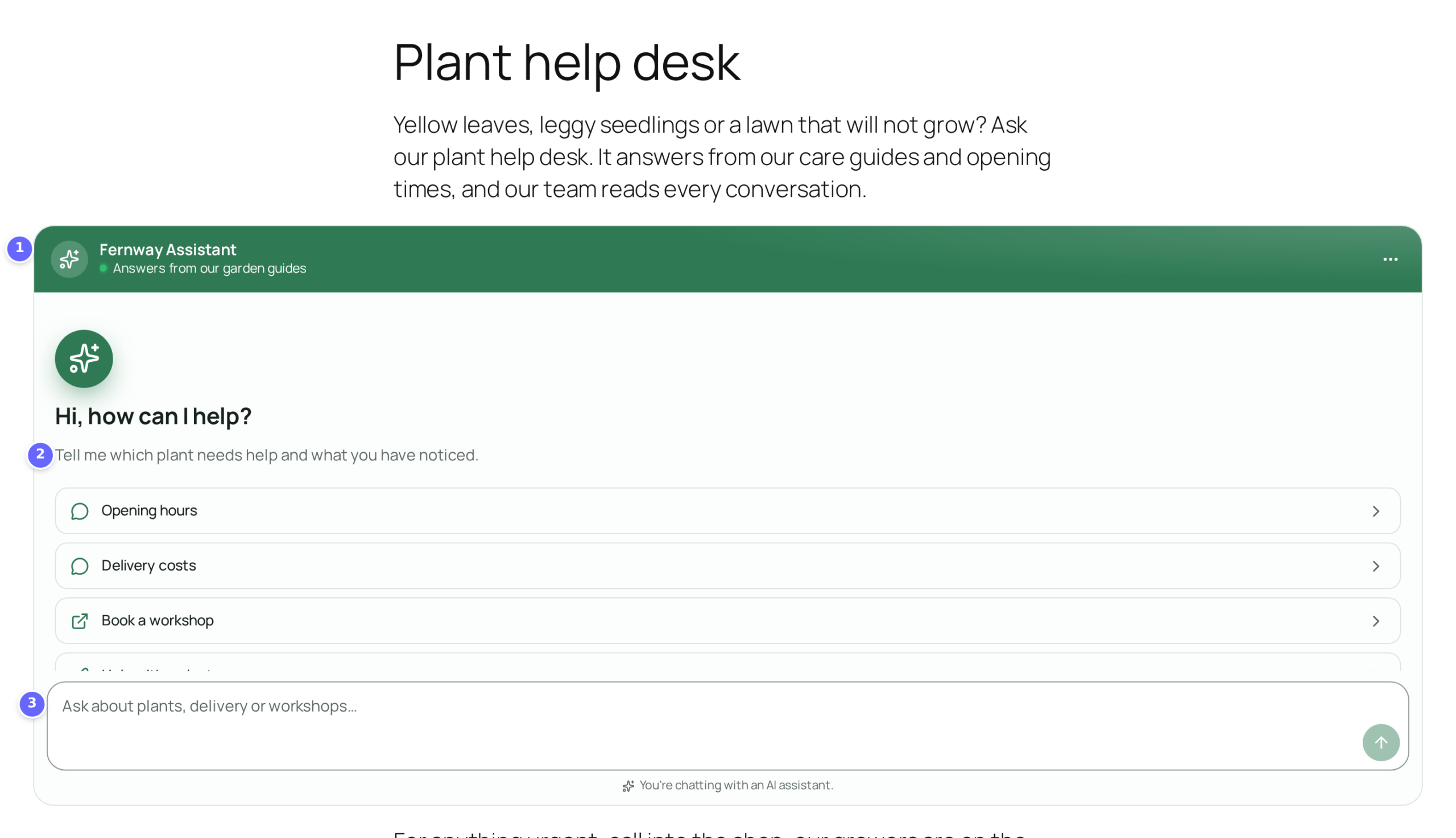
- The inline chat, with the chatbot’s name, as part of the page.
- The block’s own Greeting.
- The message field, where visitors write.
In the classic editor, a widget or a template, use the shortcode instead:
[kimaai_chatbot mode="inline" height="480px" greeting="Tell me which plant needs help."]How it works
The block has these settings in its Chat settings panel:
| Block setting | What it does |
|---|---|
| Display | In the page shows the chat in the content. Floating button shows the floating chatbot on this page instead, and changes nothing where it shows on every page. |
| Height | The height of the chat: a CSS height such as 480px, 32rem or 60vh. A plain number is pixels. Shows for In the page. |
| Greeting | A welcome text for this chat. Empty: the Welcome text on Chatbot → Appearance. |
- The shortcode
[kimaai_chatbot mode="inline"]takes the same settings as attributes:heightandgreeting. Withoutmode="inline"it shows the floating chatbot. See Chatbot. - The block can be wide or full width, where the theme supports it.
- An inline chat keeps a conversation of its own, apart from the floating chatbot and from inline chats on other pages. It has no close button and no larger window.
- An inline chat looks like the floating chatbot and answers the same way: it follows the settings on Chatbot → Appearance and Chatbot → Behaviour. Its conversations show on Chatbot → Conversations.
Troubleshooting
- The page shows two chats. The floating chatbot shows on every page while Show on every page is on. Turn it off on Chatbot → Appearance to show only the inline chat.
- The height does not change. Write a number with
px,rem,em,vhor%, or a plain number for pixels. Other values are ignored. - The shortcode shows the floating chatbot. Add
mode="inline".
Related
- Chatbot: the instructions, and the shortcode for the floating chatbot.
- Chatbot appearance: the look of every chat, inline or floating.
- Quick actions: buttons in the welcome of an inline chat too.