

KimaAI’s Home page is where the admin opens. Its Get started checklist shows the steps from a fresh install to a chatbot that answers on every page, ticks each one off as soon as it is done, and takes you to the page where you do it.
The top bar of every KimaAI page also has a switch for the admin’s colour mode: light or dark.
Set it up
- In the WordPress menu, select KimaAI. Home opens.
- Under Get started, select the first step that is not ticked. Its page opens.
- Do the step and save. Back on Home, the step is ticked and the progress goes up.
- Repeat until every step is done. The button at the top always leads to the next one.
- To switch the admin to dark mode, select the sun icon in the top bar. The moon icon switches it back.
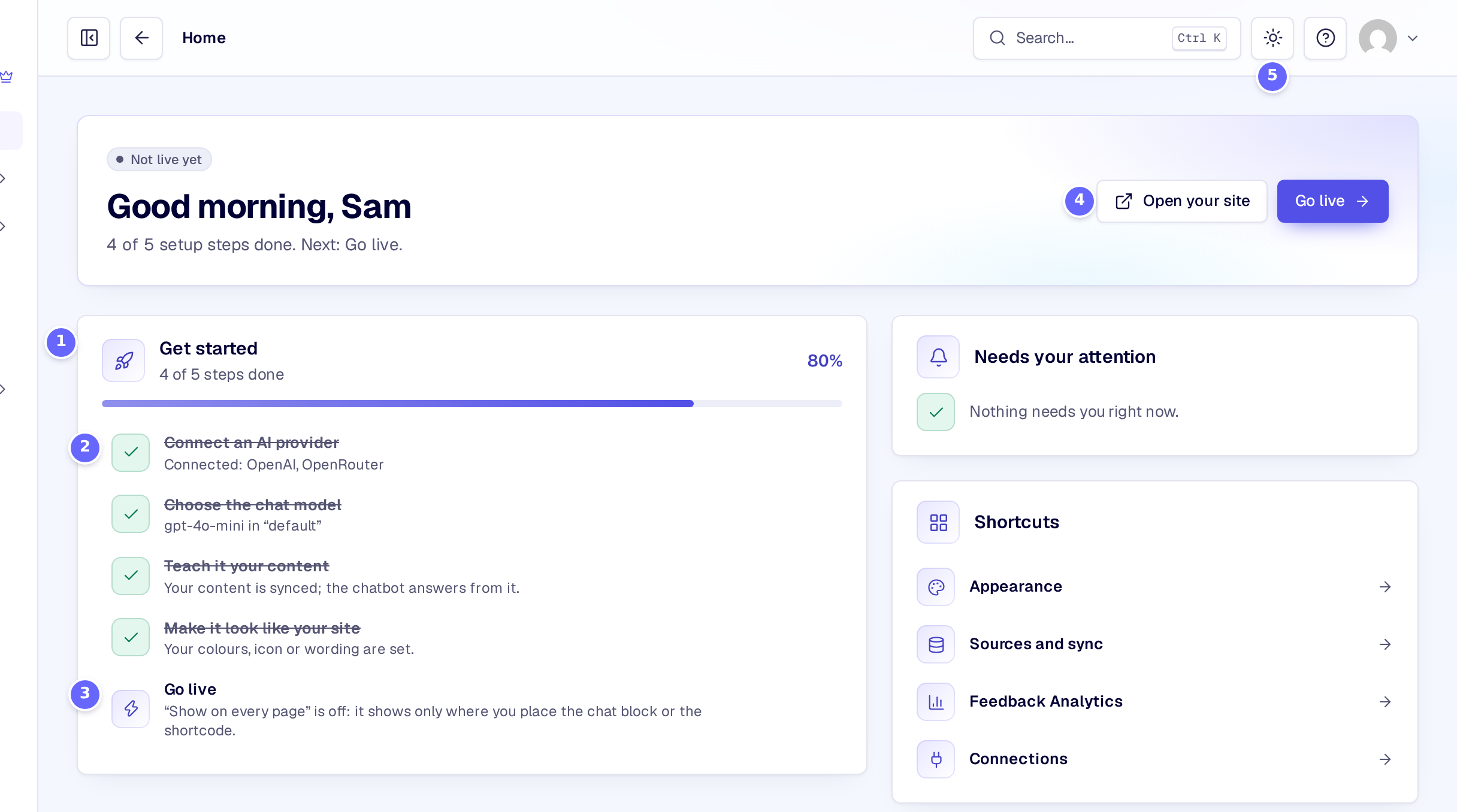
- How many steps are done, as a number and a bar.
- A step that is done is ticked and crossed out.
- A step to do, with what it needs. Select it to open its page.
- The next step, as a button at the top of the page, beside Open your site.
- The sun icon switches to the dark colour mode.
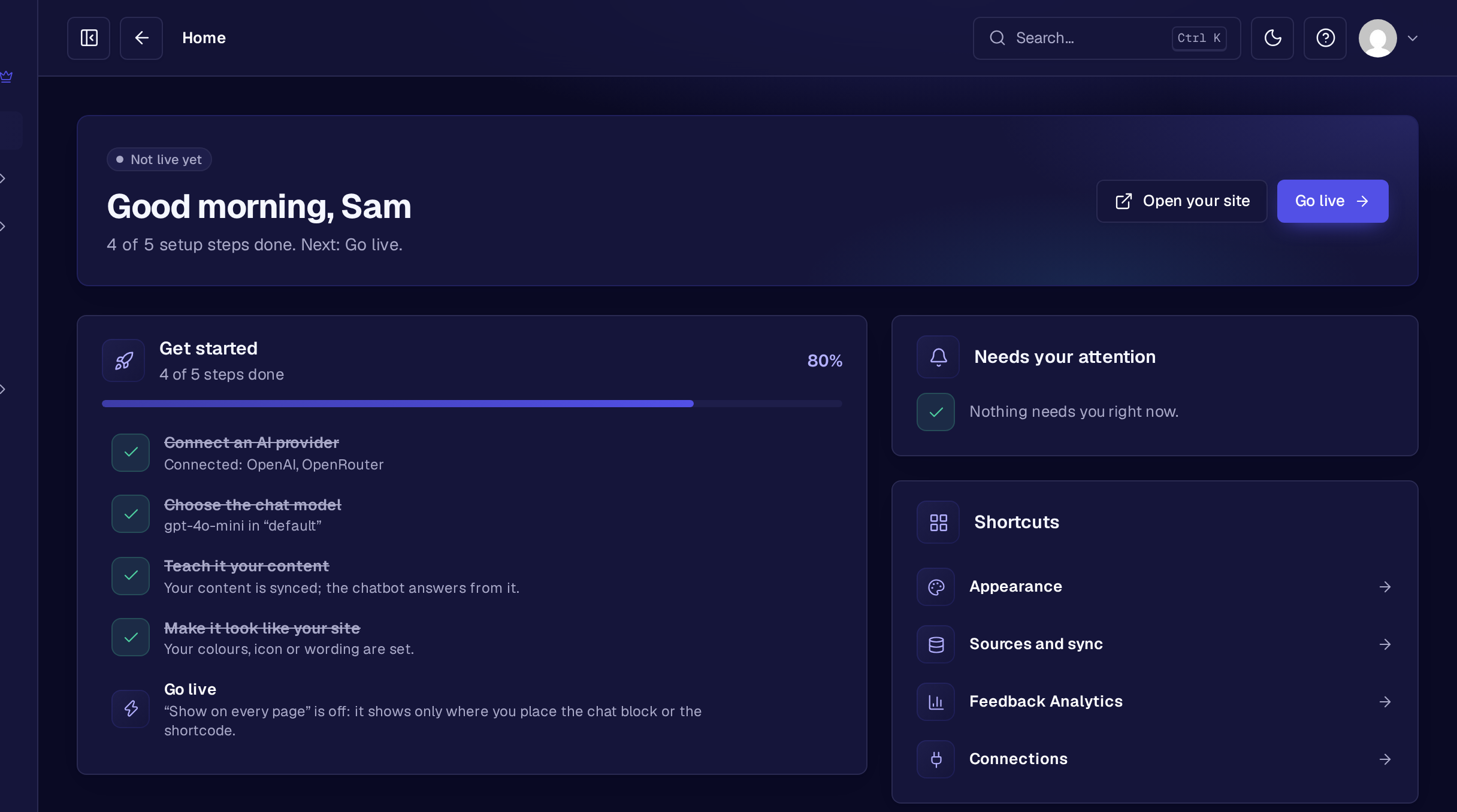
The same page in dark mode:
How it works
The checklist has these steps. A step whose feature is not on this site is left out.
| Step | Done when |
|---|---|
| Connect an AI provider | An AI environment has its key, and its last connection test did not fail (see AI environments). |
| Choose the chat model | The chatbot has an AI environment that exists and a model, on Chatbot → Behaviour. |
| Teach it your content | Some of your content is synced to the knowledge base (see Knowledge base). |
| Make it look like your site | The chatbot’s look, icon, Name, Line under the name or Welcome text differs from the default. |
| Go live | Show on every page is on in the chatbot’s appearance, and an AI provider is connected. |
- The checklist reads what KimaAI already knows, so there is nothing to tick by hand. A chat block or shortcode you placed on a page yourself does not count for Go live.
- The top of Home says whether the chatbot is Live on every page or Not live yet, and links to your site.
- Needs your attention lists every connection whose status is Needs attention, with the reason, such as a failed connection test. Select it to fix it on Connections.
- On a site without Pro, steps that need Pro carry the Pro label and are not counted in the progress.
- Old links to KimaAI’s setup wizard open Home: the checklist took its place.
- Dark mode is saved for your user only, so every administrator chooses their own. It changes the KimaAI admin pages, not the rest of WordPress and not the chatbot on your site, whose colour mode is set in Chatbot appearance.
Troubleshooting
- A step stays unticked although I did it. Save the page, then open Home again. For Connect an AI provider, test the environment’s connection: a failed test keeps it unticked.
- There is no switch for dark mode. A developer has hidden it in the code of this site; ask them.
Related
- AI environments: the first step.
- AI models: choosing the chat model.
- Chatbot appearance: making it look like your site.
- Build your first AI chatbot: the whole setup as a guide.