Before the chatbot can answer from your content, the content has to be in a vector database. KimaAI splits each page, post or PDF into passages, turns every passage into an embedding (numbers that describe its meaning) with an AI model, and stores them in your Pinecone or Qdrant database. This page connects the database, syncs your content to it and keeps it in sync when you publish and edit.
Set it up
You need an AI environment with an embedding model, such as OpenAI’s text-embedding-3-small (AI environments), and a Pinecone or Qdrant account (Pinecone, Qdrant).
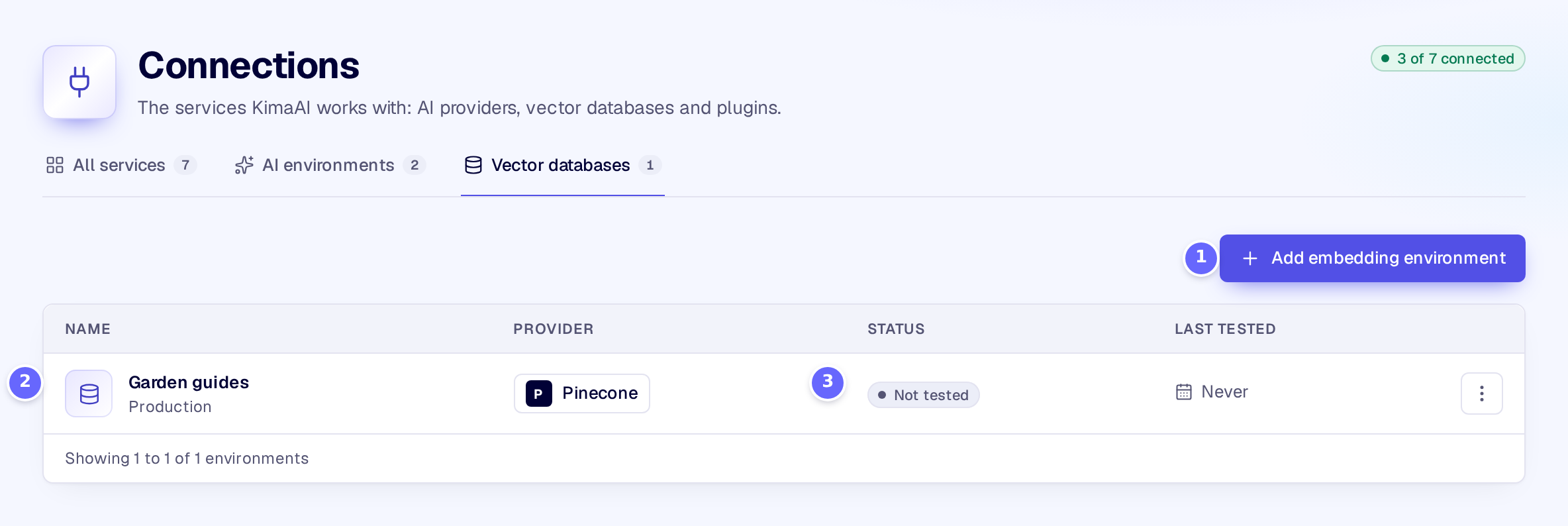
In the KimaAI admin, go to Connections and open the Vector databases tab.
Select Add embedding environment.
Give it an Environment name, choose the WordPress environment it is for, and choose the Vector database provider.
Enter the API key and the Index host your provider gives you. A Qdrant server of your own that runs without a key needs only its address in Index host.
Open AI environment and choose the AI environment and the AI model that make the embeddings.
Select Test now under Connection test, then Add.
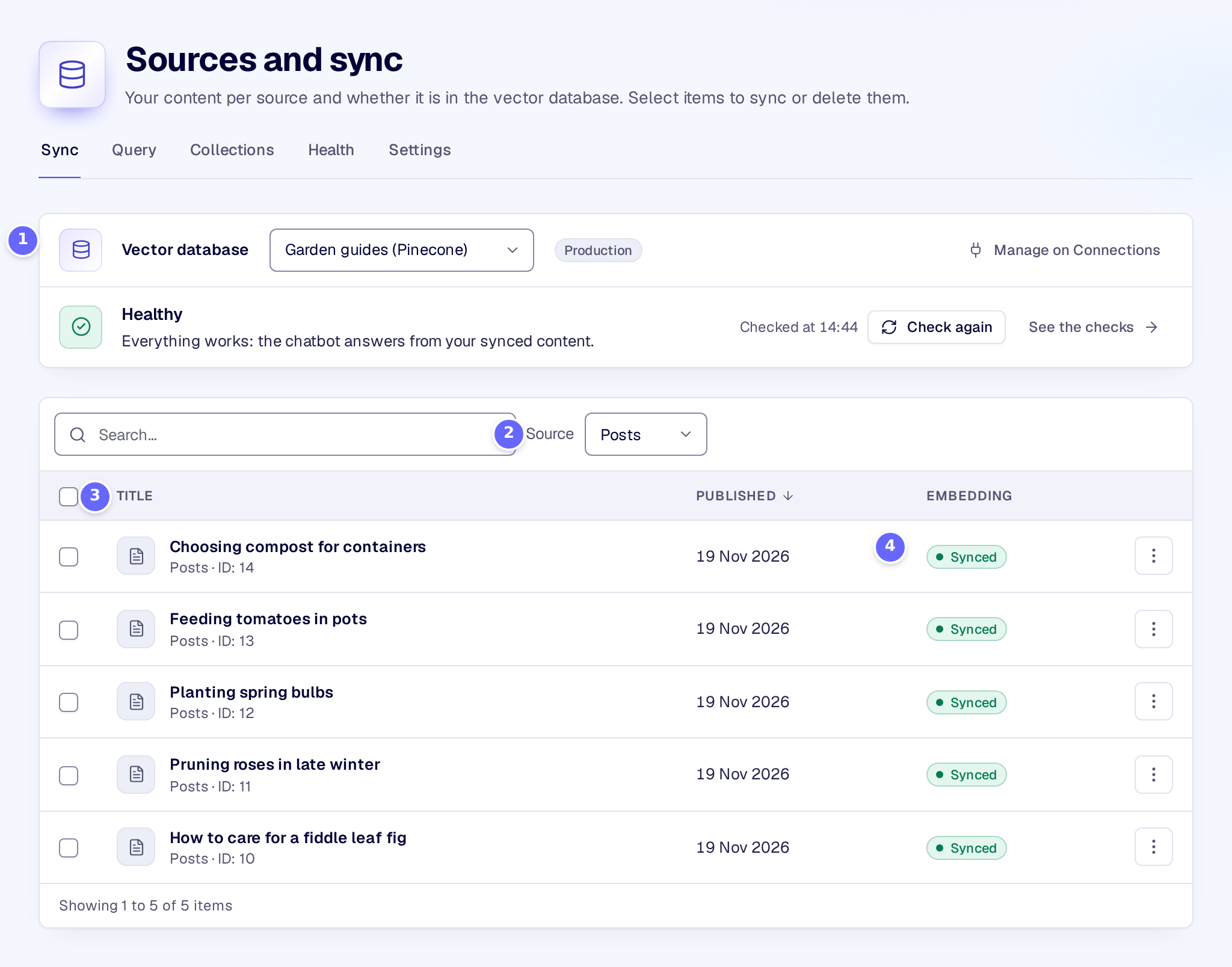
Go to Knowledge → Sources and sync. The Sync tab lists your content per source.
Choose a Source, tick the items to sync, and select Sync.
In the dialog, select Sync selected (or Force re-sync selected for items that are synced already) and wait until every item is done.
The vector databases on Connections:
Add embedding environment opens the form for a new one, titled Add embedding environment.
A vector database, with its WordPress environment under its name. Select it to change it.
Status shows the result of the last connection test: Connected, Needs attention, Not tested, or Not set up without an API key (a Qdrant database counts as set up with its Index host alone).
The Sync tab of Knowledge → Sources and sync:
The vector database the page works with, and Manage on Connections.
Source: the post type, or the PDF files, to list.
Ticks every item on the page.
Embedding shows whether an item is Synced or Not synced. The menu at the end of a row syncs or deletes that item alone.
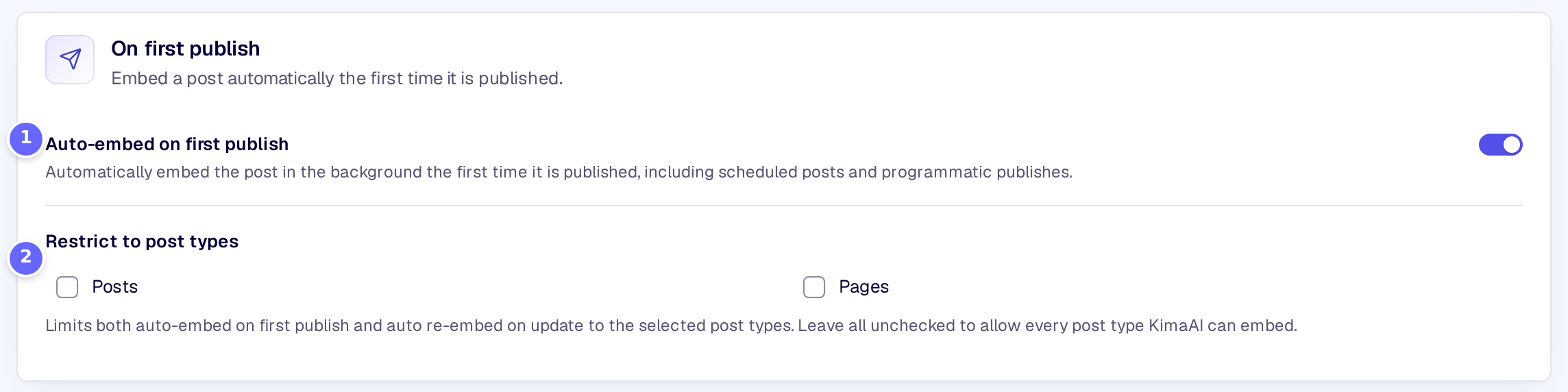
From then on, new and edited content syncs by itself, as set on the Settings tab:
Auto-embed on first publish syncs a post when it is published.
Restrict to post types limits the automatic syncs to some post types.
Then switch the chatbot on to answer from it: see Knowledge base.
Settings
Vector database
Setting
What it does
Environment name
A name for this vector database in KimaAI.
WordPress environment
The WordPress environment this database is used in: production, staging, development or local. On a site running in another, it is not used.
Vector database provider
Pinecone or Qdrant.
API key
The API key of your vector database. Pinecone needs one; a Qdrant server of your own may run without.
Index host
The host of your Pinecone index, such as example-1234.svc.us-west1.pinecone.io, or the address of your Qdrant server.
Collection
Qdrant only: the collection that holds this site’s content; it must exist in Qdrant. Empty, KimaAI uses one named after your site’s domain.
Namespace
Pinecone only: the namespace that holds this site’s content in the index. Empty, KimaAI uses one named after your site’s domain.
AI environment
Setting
What it does
AI environment
The AI environment whose provider makes the embeddings.
AI model
The embedding model. Its dimension must match the collection or index: 1536 for text-embedding-3-small.
Score
Setting
What it does
Min score
Leaves out the passages less similar to a question than this, in percent: 35 is a similarity of 0.35, and 0, the default, leaves nothing out. It applies to the chatbot’s searches, the Query tab and wp kimaai vectors query. A Minimum similarity score above 0 in the knowledge base replaces it for the chatbot.
Max results
How many passages wp kimaai vectors query returns when you do not pass --top, from 1 to 100; the default is 10. The chatbot uses the Max results per question of the knowledge base instead, the Query tab its Top results.
On first publish
Setting
What it does
Auto-embed on first publish
Syncs a post in the background the first time it is published, also when a scheduled post goes live or a plugin publishes it.
Restrict to post types
Limits the automatic syncs, on first publish and on update, to the post types you tick. With none ticked, every post type KimaAI can sync is synced.
On update
Setting
What it does
Auto re-embed on update
Syncs a post again in the background when it is updated. Posts that are not synced yet are left as they are.
Index maintenance
Setting
What it does
Weekly reconcile
Once a week, removes the passages of deleted and unpublished posts from the database, and logs the posts whose passages are out of date.
Content template
Setting
What it does
Post type
The slug of the post type the template applies to, such as product or event.
Template
One statement per line with tokens, such as Article number: {meta:_sku}. A line whose tokens are all empty for a post is left out for it.
Enabled
A template that is switched off is kept but not applied.
How it works
What can be synced. Every public post type, such as posts, pages and WooCommerce products, and PDF files from the media library.
Passages. KimaAI splits the text by headings and paragraphs into passages of about 500 tokens, each overlapping the one before by about 50, and starts each with the page’s title and heading. With each passage it stores the post’s title, address, type, language and heading.
Syncing by hand. A sync from the Sync tab always makes the embeddings again, also for synced items (Force re-sync). Up to 10 items sync while the dialog shows their progress; more are queued in the background.
Syncing by itself. Published and updated posts are synced in the background, with Action Scheduler, to the first vector database for the WordPress environment the site runs in. A post that is unpublished, trashed, deleted or given a password is removed from the database at once, whatever the settings.
Content templates. On Knowledge → Content templates, a template adds structured data that is not in the text, such as custom fields and taxonomies, to every post of a post type. The tokens are {title}, {permalink}, {meta:key}, {tax:taxonomy} and {acf:field}; the filled-in lines are added at the end of the post’s text before it is split. A change applies at the next sync of the post type.
The other tabs.Query shows which passages a question finds, with their scores. Collections lists the collections or indexes in the database and creates new ones. Health checks the database, the embedding model, the collection, the synced content, failed items, changed content and the last sync, with the fix for anything that fails.
Test now checks the connection, and then the place your content goes: the index at the Index host (Pinecone) or the Collection you entered (Qdrant) must answer or exist, or the test fails. Without one, a successful test creates the collection or index named after your site if it does not exist yet, with dimension 1536.
WP-CLI has the same tools: wp kimaai vectors sync, wp kimaai vectors freshness, wp kimaai vectors reconcile and more (WP-CLI commands).
Troubleshooting
Sync is switched off on the Sync tab. A check on the Health tab fails: open it and follow its fix.
The test fails. Check the API key and the index host or server address with your provider, and that the AI environment has a valid key. For a Qdrant Collection of your own, check that it exists.
A post is missing in the answers. Find it on the Sync tab: if it shows Not synced, sync it. Password-protected posts are never synced.
The vector database is not offered on a staging site. Each vector database belongs to one WordPress environment: add one for staging, or change its environment.
Related
Knowledge base: how the chatbot searches the synced content.