

Guardrails keep the chatbot within your rules, on both sides of a conversation. Banned terms are words the chatbot never uses in an answer, such as a competitor’s name or a promise you cannot make. Blocked words and blocked IP addresses work on the visitor’s side: a question with a blocked word, or from a blocked address, gets no answer.
Set it up
- Go to Chatbot → Behaviour and find the Instructions card.
- Write the Banned terms, one per line. The chatbot is told never to use them.
- Turn on Output guardrails to check every answer for the banned terms and remove any that slip through.
- Select Save changes.
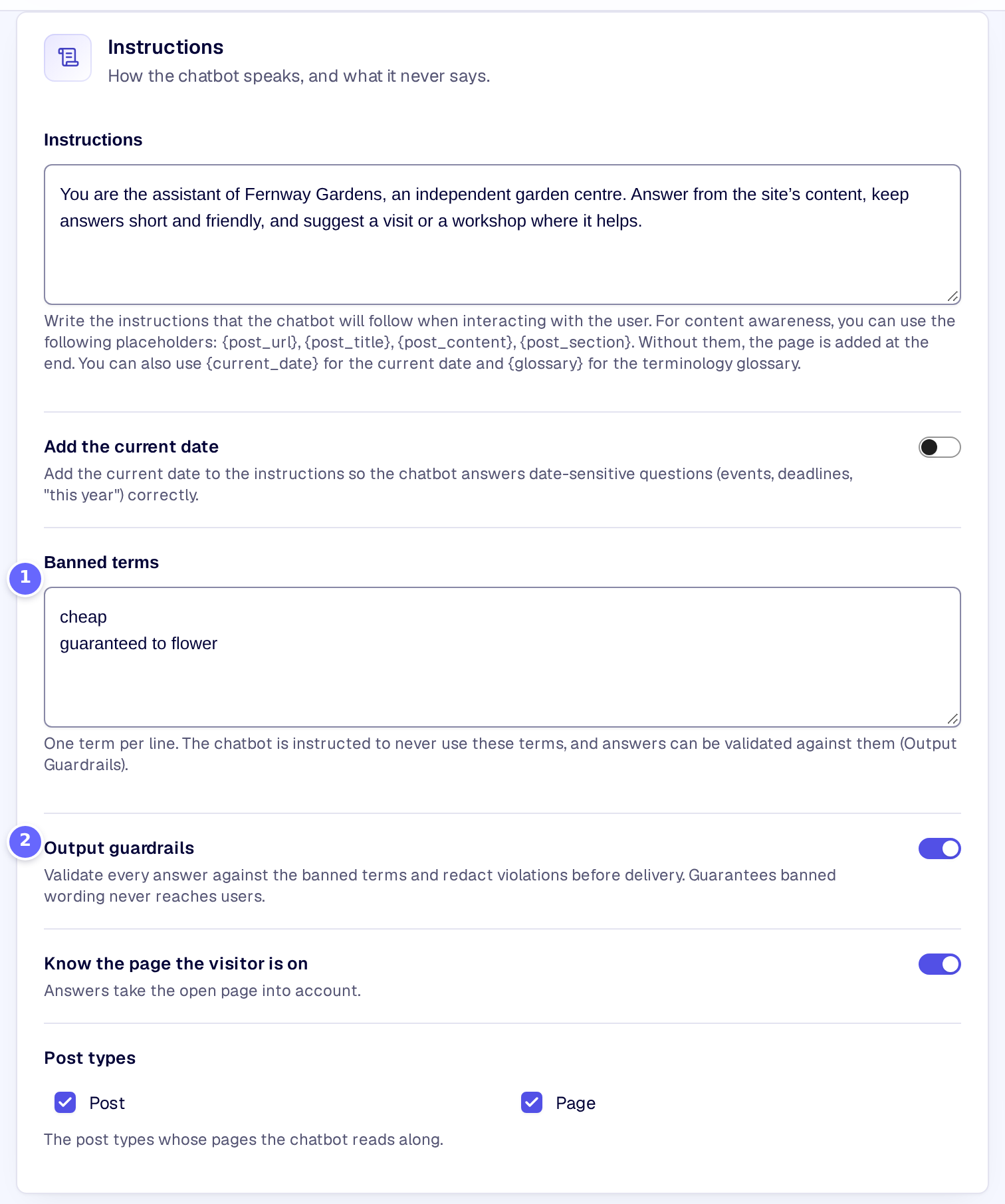
- Banned terms, one per line, are words the chatbot never uses.
- Output guardrails check every answer for them before the visitor sees it.
To leave some questions unanswered:
- Go to Settings → Privacy and security and find the Blocked words and addresses card.
- Write the Blocked words, separated by commas.
- Write the Blocked IP addresses, separated by commas: single addresses or ranges such as
198.51.100.0/24. - Select Save changes.
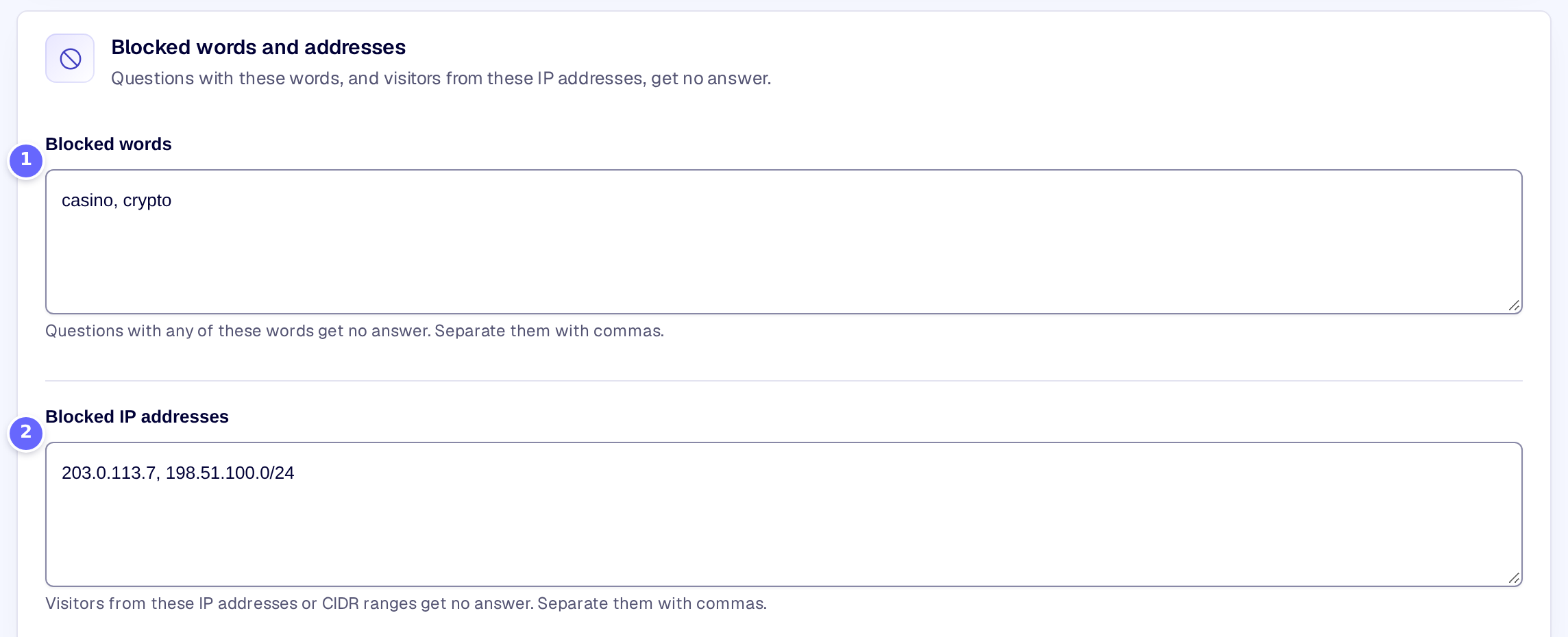
- Blocked words: a question with one of them gets no answer.
- Blocked IP addresses: visitors from these addresses get no answer.
Settings
Instructions
| Setting | What it does |
|---|---|
| Banned terms | Words the chatbot is told never to use in an answer, one per line, even when the visitor uses them. |
| Output guardrails | Checks every answer for the banned terms and replaces each one with ███ before the answer is stored and shown to the visitor. |
Blocked words and addresses
| Setting | What it does |
|---|---|
| Blocked words | Questions with any of these words get no answer. Separate them with commas. |
| Blocked IP addresses | Visitors from these IP addresses or ranges (CIDR, such as 198.51.100.0/24) get no answer. Separate them with commas. |
How it works
- Banned terms go into the chatbot’s instructions as terminology rules, together with your glossary: the chatbot is told never to use them and to use your approved wording instead. That steers the AI, but cannot promise it.
- Output guardrails are the promise. Every answer is checked for each banned term, without regard to upper or lower case, and also inside longer words. Each match is replaced with ███, and KimaAI writes a warning that names the removed terms to the logs.
- While the output guardrails are on and banned terms are set, answers do not stream word by word: an answer can only be checked once it is complete, so it arrives whole.
- A Blocked word matches as a whole word, without regard to upper or lower case. The visitor sees a message that names the word, and the question does not reach the AI provider.
- A Blocked IP address matches the visitor’s address exactly, or a range in CIDR notation, IPv4 or IPv6. The visitor sees a message that their address is blocked.
- Developers can act on a removed term with the hook kimaai_chatbot_guardrails_violation, and add their own checks before an answer with kimaai_chatbot_gate.
Troubleshooting
- A banned term still appears in an answer. Turn on Output guardrails. Without them the banned terms are only an instruction to the AI.
- A blocked IP address still gets answers. Behind a proxy or a CDN, the address the site sees may be the proxy’s. Developers can name trusted proxies with the hook kimaai_trusted_proxies, so the visitor’s own address is used.
- Answers no longer stream. That is expected while Output guardrails are on and banned terms are set.
Related
- Glossary: the approved wording the chatbot uses instead.
- Privacy and consent: the other cards on Settings → Privacy and security.
- Logs: where removed terms are recorded.