

The knowledge base lets the chatbot answer from your own content: your pages, posts, products and PDF files. KimaAI keeps that content in a vector database, which finds the passages closest in meaning to a visitor’s question. The chatbot searches it, answers from what it finds, and can list the pages it found under the answer, so visitors can check the source.
Set it up
Before you start, sync your content to a vector database: see Embeddings and sync.
- In the KimaAI admin, go to Chatbot → Behaviour and find the Knowledge base section.
- Turn on Answer from the knowledge base.
- Choose the Vector database your content is synced to.
- Turn on Source citations if the answers should end with links to their sources.
- Select Save changes.
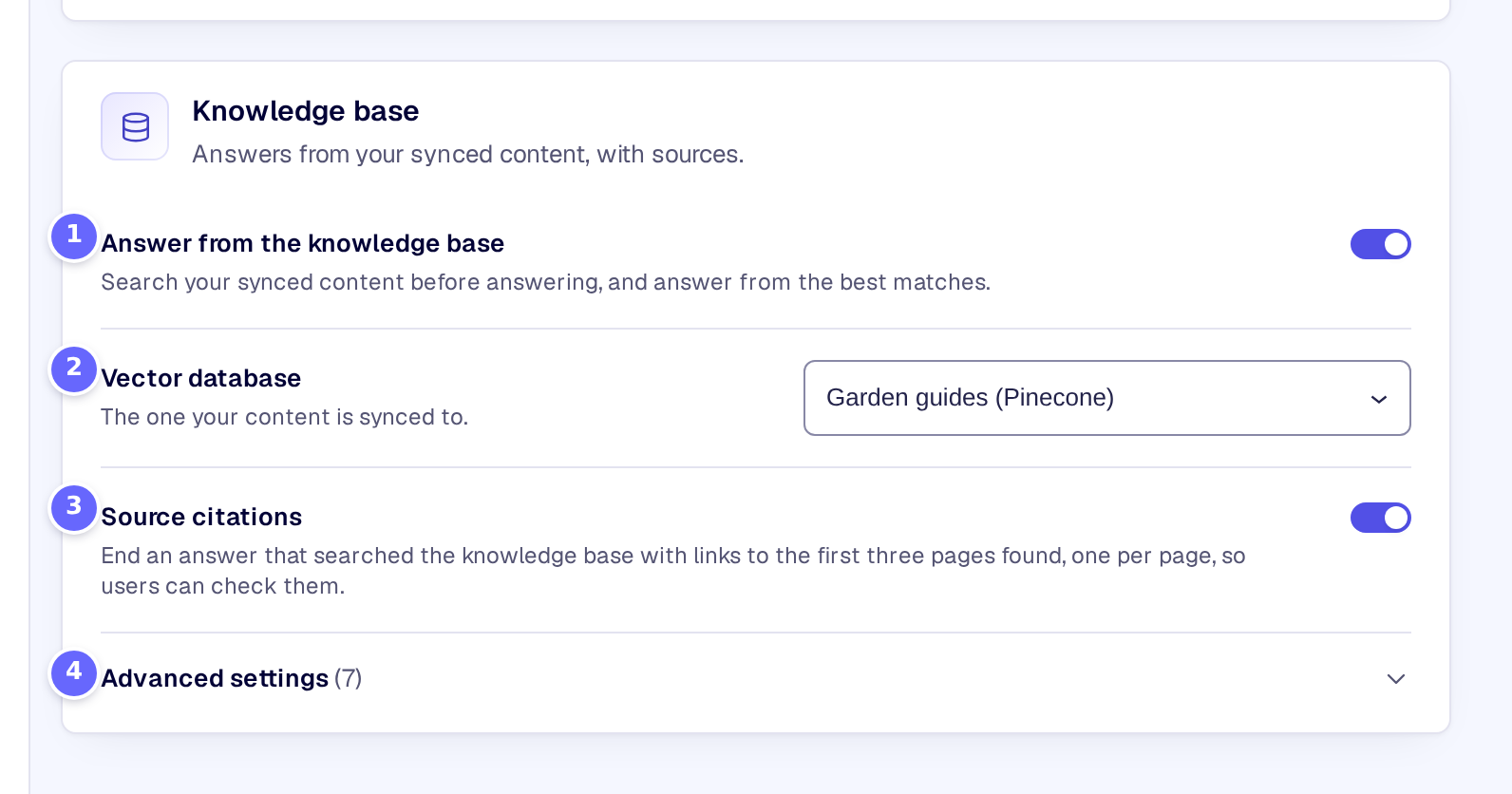
- Answer from the knowledge base lets the chatbot search your content.
- Vector database is the database your content is synced to.
- Source citations adds the links to the pages it found.
- Advanced settings opens the other settings of the section.
The defaults of the advanced settings suit most sites. Ask the chatbot a few questions first, and use the Query tab of Knowledge → Sources and sync to see what it finds.
Settings
| Setting | What it does |
|---|---|
| Answer from the knowledge base | Gives the chatbot a search of your synced content, which it uses to answer. |
| Vector database | The vector database to search. Only those set up for the WordPress environment the site runs in are listed. |
| Source citations | Ends each answer that used the knowledge base with Sources: and links to up to three of the pages found, one link per page. |
| Max results per question | How many passages one search returns, from 1 to 10. The default is 5. |
| Minimum similarity score | Leaves out passages less similar to the question than this score, from 0 to 1. At 0, the default, the Min score of the vector database applies (Embeddings). |
| Hybrid search | Adds a keyword search of your site to the search by meaning, so exact terms such as article numbers, document names and standards are found too. |
| Keyword search engine | The engine of the keyword search. Automatic (best available) takes the first installed of ElasticPress, SearchWP and Relevanssi, and WordPress’s own search otherwise. |
| Keyword results to fuse | How many keyword results are combined with the results by meaning, from 1 to 25. The default is 10. |
| Restrict to post types | Searches only the content of the post types you tick. With none ticked, all synced content is searched. |
| Match request language | Searches only content in the language of the request, with WPML or Polylang, so a multilingual site does not answer from another language. |
| Groundedness check | Checks each answer against the passages found, with the utility model. An answer that goes beyond them gets a note that parts of it could not be verified. |
| Conversation-aware queries | Rewrites a follow-up question into a complete search with the help of the conversation so far, so “and how much is it?” still finds the right product. |
All but the first three are under Advanced settings. Groundedness check and Conversation-aware queries each add one call to the utility model, which you choose on the same page in Advanced model settings (AI models).
How it works
- The knowledge base is a search the AI model can use. For each message, the model decides whether to search and with which words, and then answers from the passages it gets back.
- Each passage comes with its page’s title, address and heading, so the chatbot can name and link the source.
- When nothing is found, or nothing reaches the minimum score (the Minimum similarity score, or at 0 the vector database’s Min score), the chatbot answers from its instructions alone. Tell it in the instructions what to say then, for example to offer your contact page (Chatbot).
- With Hybrid search, the two result lists are merged by rank (reciprocal rank fusion), and a page found by both counts once. If the keyword engine you chose is not installed, the first available one is used; if it fails, the results by meaning are used alone. Keyword results are not filtered by the Minimum similarity score.
- Source citations lists the pages found for the question, in the order found. They are the pages the chatbot had in front of it, not a list of the sentences it used.
- The Groundedness check runs only when the search found something. When an answer fails it, the note goes above the answer, and the conversation can go to your team (Human handoff). Developers can react with the kimaai_chatbot_ungrounded_answer action.
- Conversation-aware queries uses up to the last six messages of the conversation. A first question is searched as it is.
Troubleshooting
- The chatbot does not use my content. Check that Answer from the knowledge base is on and a vector database is chosen, then check on Knowledge → Sources and sync that the content is synced and the Health tab passes.
- The answers come from the wrong pages. Try the question on the Query tab: if weak matches come first, raise the Minimum similarity score (or the vector database’s Min score), or limit the search with Restrict to post types.
- Good matches are missing. A Minimum similarity score here, or a Min score on the vector database, may be too strict for your content: compare the scores on the Query tab, then lower it.
- An article number or a product code is not found. Turn on Hybrid search.
- The Vector database list is empty. No vector database is set up for the WordPress environment the site runs in: see Embeddings and sync.
Related
- Embeddings and sync: connect the vector database and sync your content.
- Pinned answers: fixed answers to single questions.
- Content awareness: the page the visitor is on.
- Pinecone and Qdrant: set up a vector database.